
Introduction #
Web Fallbacks let you display any WordPress page or custom post type inside your LearnDash App. These pages load responsively and automatically remove your site’s header and footer, offering a native-like experience.
This guide explains how to configure Web Fallbacks, when to use them, and how they compare to native App Pages.
What Are Web Fallbacks? #
Web Fallbacks allow your existing WordPress content such as WooCommerce shops or custom archives to be embedded within the app. The content is displayed with the app’s native header and navigation, while your website’s header and footer are hidden.
Benefits of Web Fallbacks #
- Seamless Integration – Web content blends in with the app’s native UI.
- Cost & Time Efficient – Use existing web content without needing custom React Native development.
- Supports Page Builders – Continue designing with Gutenberg, Elementor, and other tools.
Limitations of Web Fallbacks #
- Requires Internet – These pages load over WiFi or mobile data and are unavailable offline.
- Dependent on Site Speed – May load slower than native App Pages.
Accessing Web Fallback Settings #
- In your WordPress Dashboard, go to LearnDash App > Menus.
- Choose either Tab Bar Menu or More Screen Menu.

- Click Save Menu if you’ve made any previous changes.
Adding Web Fallback Pages #
- Under App Core or WordPress Pages, select a page (e.g., Shop or Movies) and click Add to Menu.
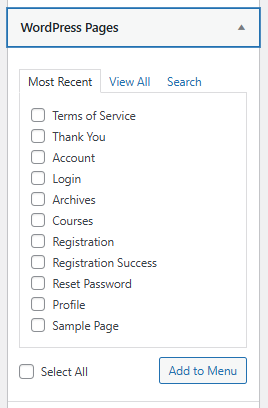
- Drag the new menu item into position.
- Click Save Menu.
Previewing Web Fallback Content #
- Open the LearnDash App on your device.
- Tap the new tab (e.g., Shop).
- Your website page loads without the site’s header/footer. Only the native app header is shown.
- Tap content like a product or article to view it.
- Use the app’s Back arrow to return.
Leveraging Deep Linking to Native Screens #
- Inside a fallback page, tap a link that leads to a native screen.
- The app detects the URL and opens the appropriate native screen.
- Tap Back to return to the web fallback view.
What Are App Pages? #
App Pages are fully native screens built using App Blocks. Unlike web fallbacks, they load instantly, work offline, and offer better performance.
Benefits of App Pages #
- Native Experience – Smooth navigation with faster loading.
- Offline Availability – Content is cached for offline access.
- Better Performance – No external requests; served natively in-app.
Accessing App Pages #
- In your Dashboard, go to LearnDash App > App Pages.
- Create or edit App Pages using App Blocks (denoted with a phone icon).

Comparing Native Screens and Web Fallbacks #
| Feature | Web Fallbacks | Native App Pages |
| Setup Complexity | Easy – Use existing pages | Advanced – Requires REST API + coding |
| Performance | Slower, internet dependent | Fast and responsive |
| Offline Availability | Not supported | Fully supported |
| Visual Integration | Matches app layout, not perfect | Fully integrated |
| Page Builders | Supported (Elementor, Gutenberg) | Not applicable |
Troubleshooting and FAQs #
Q: Why aren’t my web fallback pages showing in the app?
A: Make sure you clicked Save Menu, then force-close and reopen the app.
Q: Why is the content loading slowly?
A: Performance depends on your website’s speed and server resources. Use caching and optimization plugins where possible.