
Introduction #
Consistent, on-brand colors elevate your app’s design, reinforce your identity, and improve usability. The Learndash App Color settings let you customize everything. From backgrounds and buttons to tab bars and in-app purchase highlights directly from your WordPress Dashboard.
This guide walks you through setting colors for every section of your app and previewing changes in real time on iOS and Android.
Open the Color Settings #
- In WordPress, go to Learndash App > Branding > Colors.

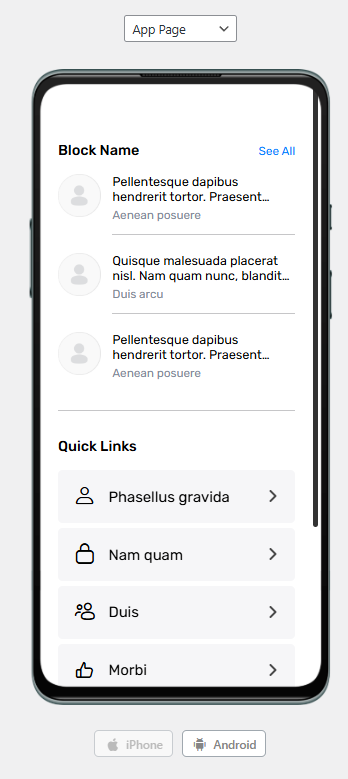
- Use the toggle to preview your app design on Android or iPhone mockups.
Configure General Colors #
- In the General section, click each color swatch to set:
- Background Color
- Alternate Background Color
- Cover Image Background
- Border Color
- Content Loader Color
- Accent Color
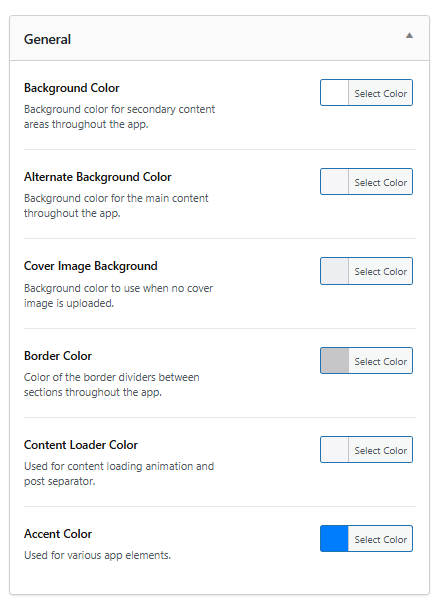
- Use hex codes or the color picker.
- Changes preview live on the App Page, Directory Page, and Menu Page.
Customize the Navigation Bar #
- Under Navigation Bar, set:
- Background Color
- Text Color
- Link Color
- Background Color
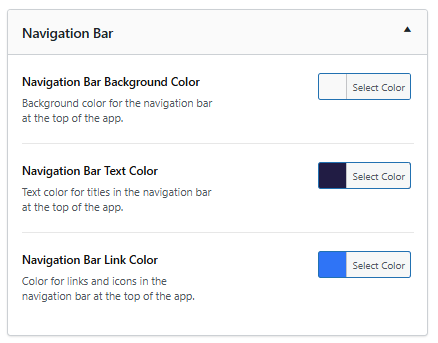
- Preview the header changes in real time.
Style the Tab Bar & More Screen #
- Go to Tab Bar & More.
- Set:
- Tab Bar Background Color
- Icon Default Color
- Icon Active Color
- Tab Bar Background Color
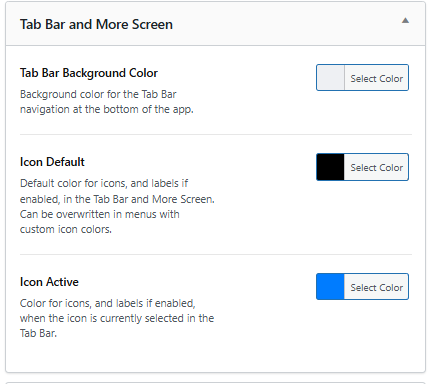
- Preview the updated Tab Bar and More Screen mockups.
Customize Button Styles #
- Under Buttons, set:
- Primary Button Background & Text Color
- Secondary Button Background & Text Color
- Primary Button Background & Text Color
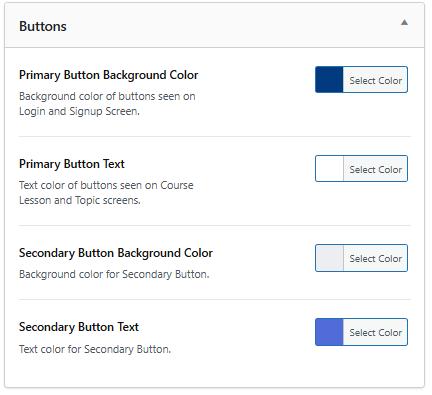
- Review the updated styles in the app preview.
Adjust Text Colors #
- Under Text Colors, configure:
- Heading Text Color
- Body Text Color
- Description Text Color
- Meta Text Color
- Heading Text Color
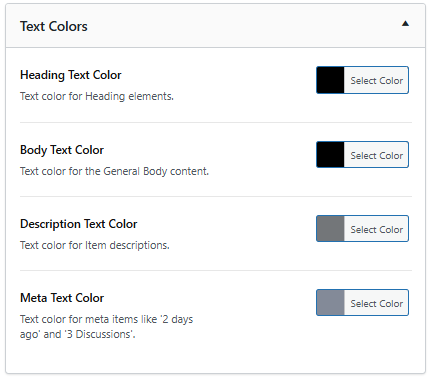
- Ensure contrast and readability against both light and dark backgrounds.
Style Labels #
- Under Labels, set:
- Label Background Color
- Label Text Color
- Label Background Color
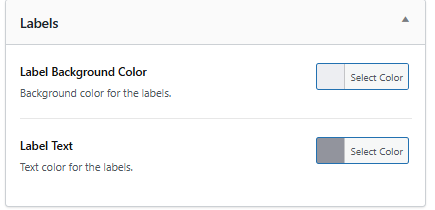
- Confirm visibility in both list and detail views.
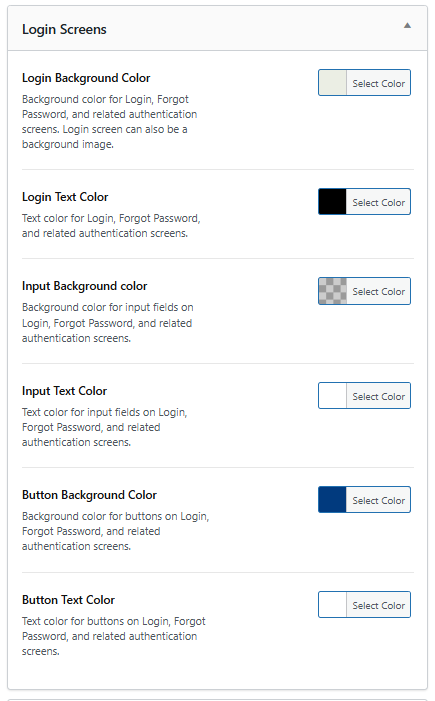
Customize the Login Screen #
- Scroll to Login Screens.
- Configure background, field borders, and button colors.
- Preview both Login and Forgot Password screens.
Style the Register Screen #
- Under Register Screens, set colors for:
- Input fields
- Buttons
- Background
- Input fields
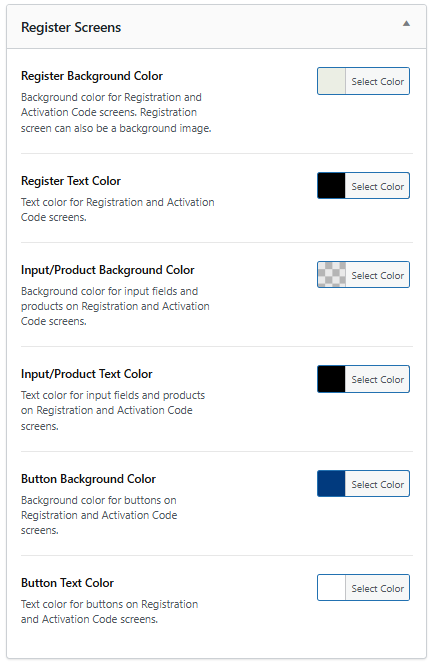
- Confirm changes in the Register screen preview.
Set Android Status Bar Color #
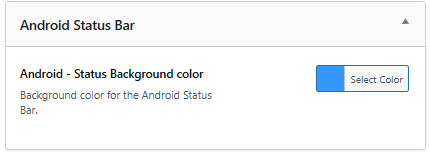
- Under Android Status Bar, configure the Status Background Color.
- Confirm changes in the Android device mockup.
Configure Course Progress Colors #
- In the Courses section, set colors for:
- Completed
- In Progress
- Start Course
- Free
- Not Enrolled
- Completed
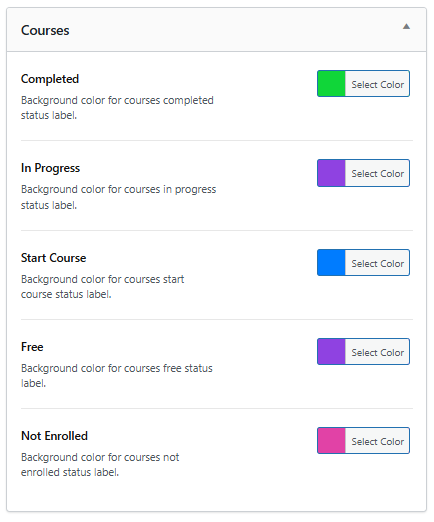
- Preview updates in the course list view.
Customize In-App Purchases #
- Go to In-App Purchases and configure:
- Purchased Status Checkmark Color
- Benefits Checkmark Color
- Purchased Status Checkmark Color
- Preview on the purchase screen to ensure proper contrast and visibility.
Save Your Changes #
- Scroll down and click Save Changes to apply all color settings.
Note: Unsaved changes will be lost upon navigating away or refreshing the page.
Troubleshooting and FAQs #
Q: Why aren’t color previews updating?
A: Click Save Changes, then hard-refresh your browser or clear cache plugins.
Q: Why don’t changes appear in the app?
A: Force-close and reopen the Learndash App to load the updated settings.