
Introduction #
The Require Purchase setting allows you to restrict your entire app behind a single paywall. With Access Controls, you now gain the flexibility to set up granular, rule-based restrictions using memberships, courses, or custom logic.
This guide shows you how to migrate your Require Purchase setup to the new Access Controls system using Access Groups and rules.
Note: If you don’t plan to enable Access Controls, your current Require Purchase setup will remain active. No action is required unless you want to migrate.
Prerequisite: Note Your Existing Setting #
Before enabling Access Controls:
- Go to Learndash App > Settings > In-App Purchases.
- Take note of your Require Purchase setting.
- Once Access Controls is enabled, this toggle will disappear, and its logic must be rebuilt manually using Access Groups.
Activating Access Controls #
To begin the migration:
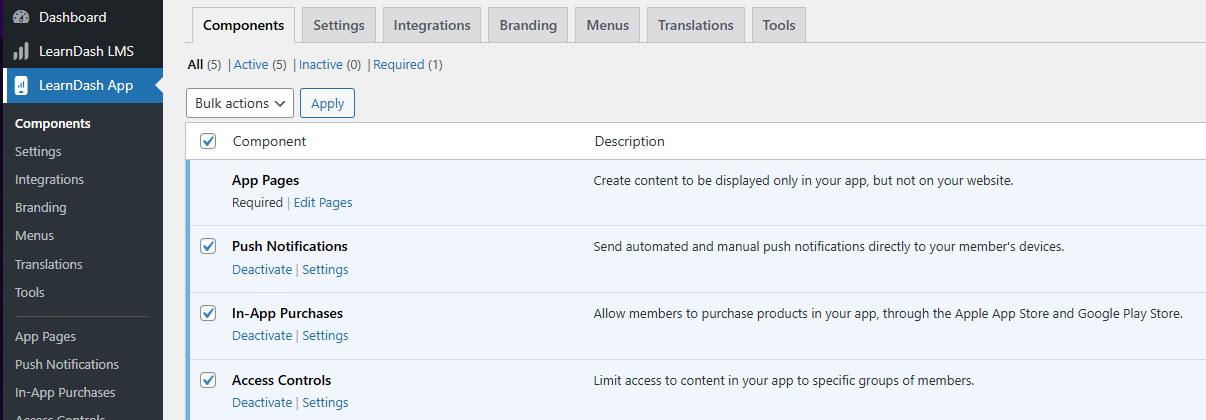
- Go to Learndash App > Components.
- Check Activate Access Controls.
- Click Save Changes.
- If prompted to migrate Require Purchase, click the migration link to continue.
Your current paywall logic will now be replicated using Access Groups and rules.
Build Matching Access Groups #
Recreate your previous gating logic:
- Go to Learndash App > Access Controls > Access Groups.

- Click Add Group.

- Select the matching condition:
- Click Save Group.
- Repeat for each membership or course previously required for access.
Restrict App Login via General Access Rule #
Now restrict app access based on your new groups:
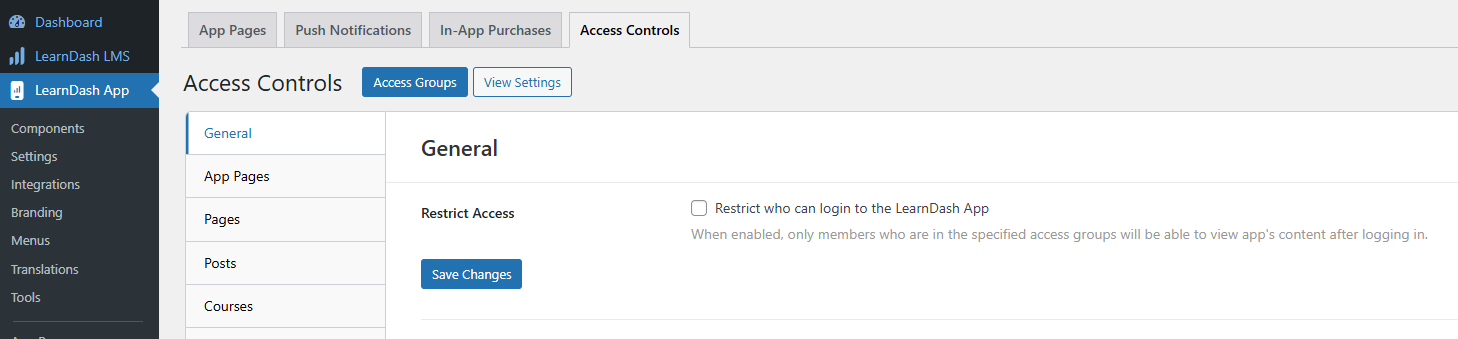
- Go to Learndash App > Access Controls > General.
- Check Restrict Access to require login.
- Under Access Groups, select the group(s) you created.
- Choose a Restricted Action:
- Show Product Screen
- Return to Login
- Open App Page (e.g., a custom “Need Access?” screen)
- Show Product Screen
- Click Save Changes.
To lock the entire app to logged-in users, enable Private App under Learndash App > Settings > General > Privacy. This hides all content until login or registration.
Troubleshooting and FAQs #
Q: My old paywall isn’t showing after migration.
A: Double-check that every gated item has a corresponding Access Group and that those groups are selected in the General rule.
Q: I don’t see my membership plugin under Access Groups.
A: Make sure the plugin (e.g., MemberPress, Restrict Content Pro) is installed and active.
Q: Can I show a custom page when users are blocked?
A: Yes. Create an App Page and choose Open App Page in your General rule to show it to restricted users.
Q: Can I now gate specific pages, posts, or courses?
A: Absolutely. After setting up your general login rule, use additional rules under App Pages, Pages, Posts, or Courses to target individual content.