
Introduction #
Adding LearnDash as an Admin user to your Google Play Console lets our team manage In-App Purchases, subscriptions, and other app settings on your behalf. This guide walks you through inviting LearnDash with the correct permissions.
Inviting LearnDash with Admin Access #
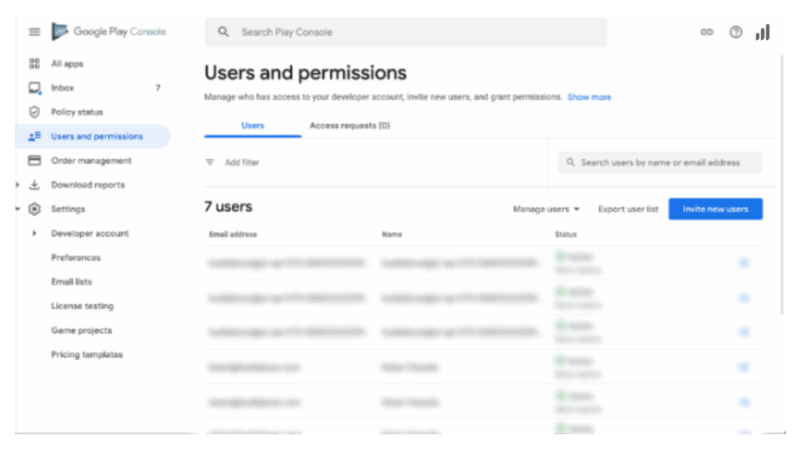
- Go to Google Play Console > Users and permissions. Log in your Google Play Console and open the Users and permissions section in the sidebar.
- Click Invite new users.
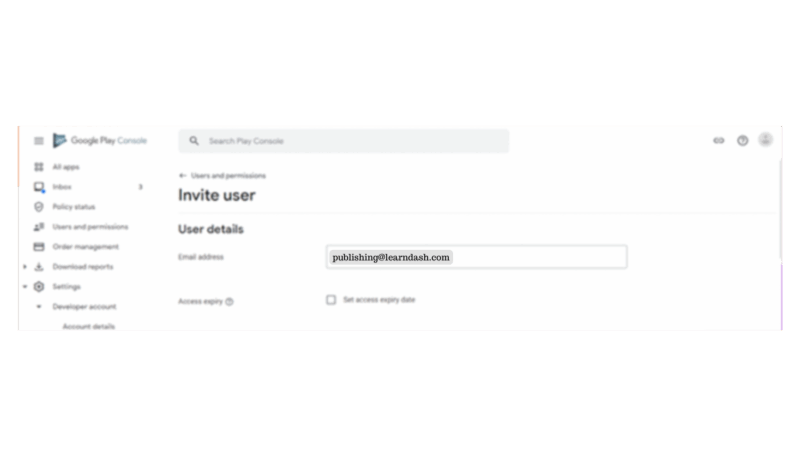
- In the Email address, paste the address from your LearnDash questionnaire. Ensure Set access expiry date is unchecked.
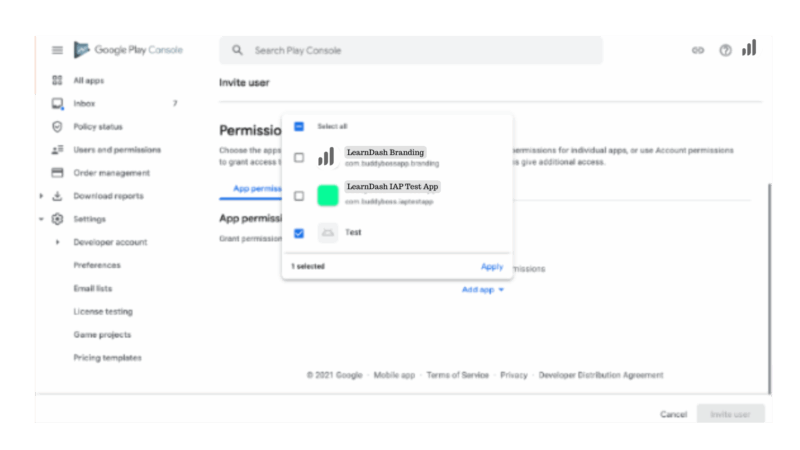
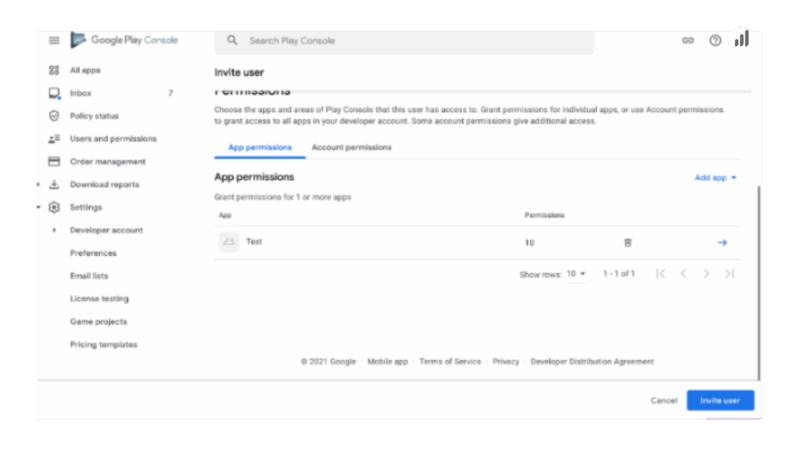
- Under App permissions, add each app you want LearnDash to manage.
Click Apply.
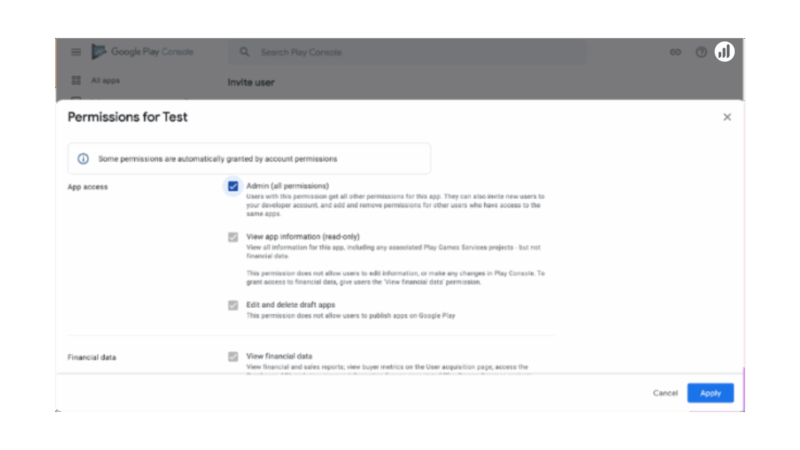
- In the permissions modal, select Admin (all permissions). Click Apply.
- Click Invite user. LearnDash will accept the invitation and gain access.
Troubleshooting & FAQs #
Q: I don’t see “Users and permissions” in the console.
A: Confirm you’re using an Owner or Administrator account on the correct Google Play project.
Q: The “Invite new users” button is disabled.
A: Check that your account has the Manage users permission under your own user settings.
Q: I entered the email but never received a confirmation.
A: Verify the address is exactly as provided, and ask your LearnDash contact to check their inbox (including spam).
Q: Can I change LearnDash’s role later?
A: Yes. In Users and permissions, click the three-dot menu next to the LearnDash entry to Edit permissions or Remove access.