
Introduction #
Translating or customizing text in your LearnDash App ensures clarity, accessibility, and alignment with your community’s language or tone. Whether you’re translating default labels like “Blog” into another language or rewording them to fit your brand’s voice, the Translations panel allows easy updates.
This guide walks you through finding, editing, and verifying translations directly in your WordPress Dashboard.
Accessing the Translations Panel #
- In your WordPress Dashboard, go to LearnDash App > Translations.
- Use the search bar at the top of the panel to locate any string used in the app.

Searching for Text to Translate #
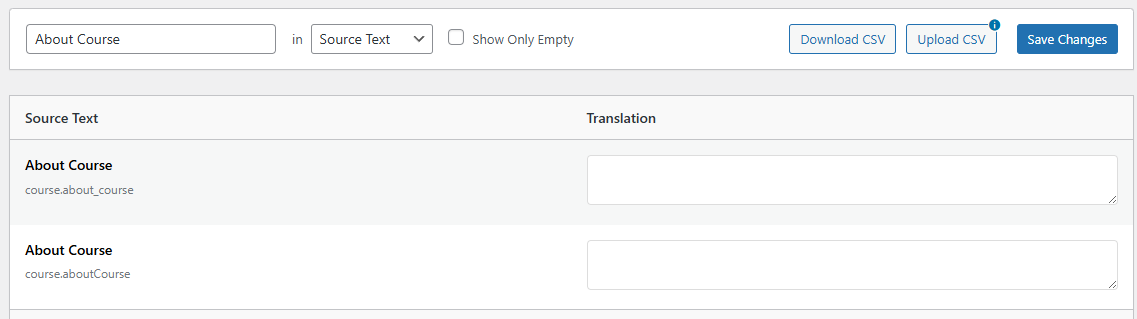
- In the search bar, type the word or phrase you want to update (e.g.,About Course).
- Review the list of strings where that term appears in the app.
Adding Your Translation #
- For each relevant string, click into the translation field beside the original text.
- Type your preferred version. This can be in any language or simply a reworded English label (e.g., About syllabus instead of About Course).

- Click Save Changes to apply.
Verifying Translations in the App #
- Open your LearnDash App on a mobile device.
- Navigate to the section where the modified label appears.
- Confirm that your translation displays correctly in the interface.
Troubleshooting and FAQs #
Q: Why aren’t my translations showing in the app?
A: Force-close and reopen the LearnDash App to refresh cached strings and load the latest translations.
Q: What if I can’t find the text I want to change?
A: Try searching with a partial keyword (e.g., type “Art” to find “Articles”), or double-check the exact text as it appears in the app.
Q: Why did my translations disappear after refreshing?
A: Make sure to click Save Changes before leaving the page. Unsaved edits will be lost.
Q: Can I reset a string to its original wording?
A: Yes. Clear the custom translation field and click Save Changes to revert to the default.
Q: Can I translate all dynamic or placeholder text?
A: No. Only static strings listed in the LearnDash App > Translations panel can be modified. Dynamic placeholders (like user names or post counts) cannot be edited from this panel.