
Introduction #
Linking your Apple Developer account with the Learndash App automates in-app product syncing, certificate and provisioning profile creation, and enables seamless iOS build submissions via our service. Before you begin, make sure you’ve already set up and enrolled in the Apple Developer Program.
Generating an App Store Connect API Key #
- Sign in at appstoreconnect.apple.com with your Apple ID.
- Go to Users and Access > Integrations.
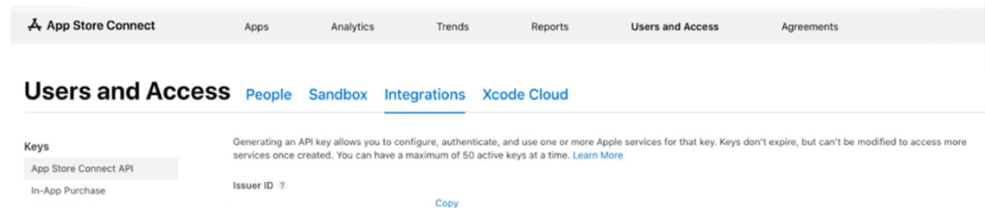
- Click the + button beside the App Store Connect API.
- Provide a Name for this key (e.g., “Explorer App”).
- Under Access, choose Admin to grant full permissions.
- Click Generate.
- Select Download API Key to save the .p8 file (this can be downloaded only once).
- Copy the Issuer ID from the top of the Integrations page.
- Copy the Key ID shown next to your newly created API key.
Linking Your API Key in the Learndash App #
- In WordPress Admin, navigate to LearnDash App > Configure > iOS Settings.

- Under Connect Your Apple Developer Account, click Upload next to Apple Private Key and select the .p8 file you downloaded.
- Paste your Issuer ID into the Issuer ID field.
- Enter your Key ID into the Key ID field.
- Click Connect Account.
- Look for the green Connected indicator to confirm a successful link.
Managing Your Apple Developer Connection #
- To switch API keys or use a different account, click Disconnect Account.
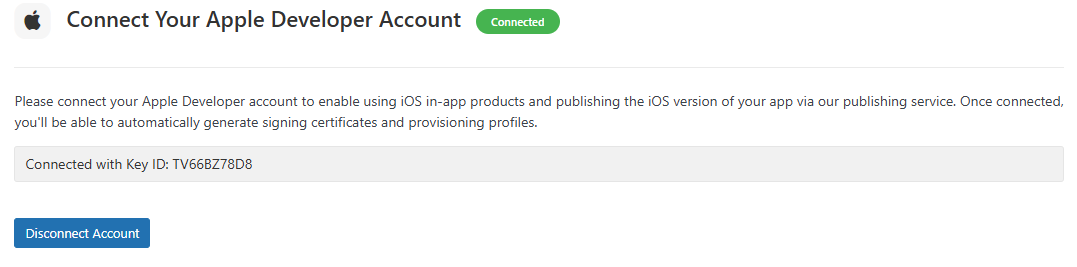
- Then re-upload the new .p8 file and re-enter the corresponding Issuer ID and Key ID under iOS Settings, and click Connect Account once more.
Troubleshooting and FAQs #
Q: I don’t see the Integrations tab in App Store Connect.
A: Ensure you’re on the Users and Access page and that your Apple ID has Admin privileges.
Q: The .p8 file upload fails in WordPress.
A: Confirm you’re using the exact file downloaded from App Store Connect. Clear your browser cache or switch browsers if the issue persists.
Q: I get an “Invalid Issuer ID or Key ID” error.
A: Check for extra spaces when copying both IDs. If the problem continues, generate a new API key in App Store Connect and update both values in your settings.
Q: How do I verify that the connection is live?
A: After clicking Connect Account, the Connected indicator (in green) in iOS Settings confirms an active link.