
The LearnDash MemberPress integration enables you to connect your courses to MemberPress memberships. MemberPress can also handle the ecommerce and checkout experience for you, allowing you to bundle multiple courses into a single membership, and automatically granting and removing a member’s access to a course based on their membership status.
LearnDash has some content protection built-in, but MemberPress will expand upon that and provide a lot more ways for you to manage memberships, subscriptions & more.
NOTE: You need to purchase a license for the MemberPress plugin before you can use the free LearnDash integration.
Why Use MemberPress? #
A few reasons why you might want to use MemberPress in conjunction with LearnDash:
- Create membership levels, and assign a course (or multiple courses) to the different levels
- Offer coupons or discount codes for your courses
- Sell courses in a bundle (i.e. one price provides access to multiple courses)
- Sell access to courses as an ongoing subscription
Installation #
Option 1: Add-ons Menu (requires an active LearnDash license) #
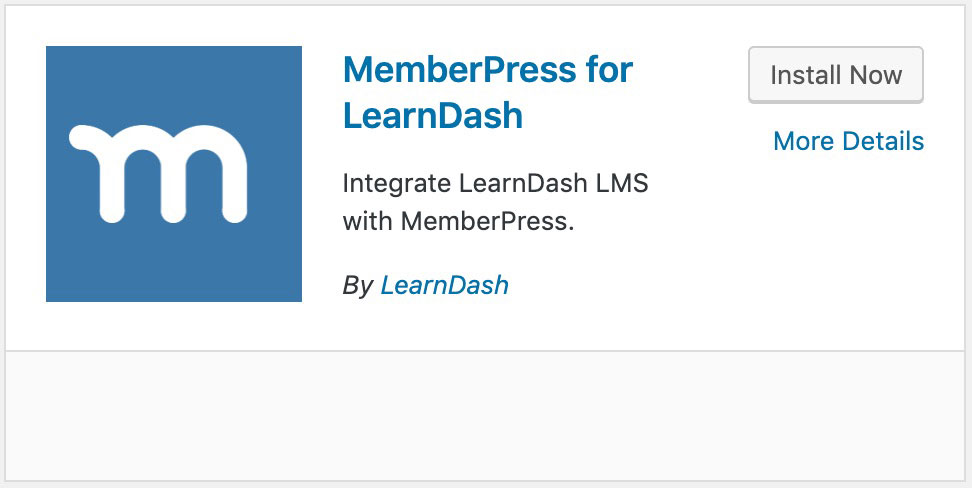
In your WordPress admin area, go to LearnDash LMS > Add-Ons and locate the MemberPress for LearnDash add-on. Click Now and once the installation is complete, click the Activate plugin button.
Option 2: Manual Upload #
Download the plugin file (remember that you must be logged in to download). In your WordPress admin dashboard go to Plugins > Add New and then Click to upload the MemberPress for LearnDash plugin. You’ll may need to browse for the plugin .zip that you downloaded previously. Once you find it (it may be in your computer’s Downloads folder), click Open, Install Now and finally, click the Activate Plugin button.
How it Works #
Before you can assign a LearnDash course to a membership in MemberPress, you need to:
- Create a LearnDash course
- Create a membership in MemberPress
We’ll assume you have already created a LearnDash course.
Create a Membership #
We recommend you watch the 5-minute video below, or you can read the written instructions in the MemberPress documentation.
Assign a Course to a Membership #
Now it’s time to associate your LearnDash course(s) with the membership you just created. Doing so will mean that once a user purchases (or simply gains access to) the membership, they will automatically have access to the course(s) as well.

- On the Edit Membership page, scroll down and look for the Membership Options box
- Click on the LearnDash tab
- Choose the course(s) that you want to assign to this membership
NOTE: You may link multiple courses to a single membership. Also the course that you will be selecting should have the access mode set to “Closed”. Check out our documentation on access modes here.
When you’re finished editing your membership, be sure to click the Publish or Update button to save your changes.
IMPORTANT: When adding five or more courses to a single membership, course enrollment process is done in the background and you will need to set up a cron job. To set up a cron job please follow these steps.
Retroactive Tool #
If you are using MemberPress and some customers and users have been added as members or purchased courses but have not been properly granted access, you can use the retroactive tool to fix the issue. The tool will scan all Memberships, Groups, Rules, Subscriptions, and Transactions, looking for Completed transactions that are connected to a LearnDash course, and automatically enroll the associated users.
Example Situation: If you add a course to a Subscription after someone has already purchased the subscription, running this tool will find that user and give them access to this new course you just added.

- Go to MemberPress > Settings
- Click on the LearnDash tab
- Click the Run button under Tools
- Click Update Options once the process has completed
Using MemberPress with LearnDash #
In this webinar we discuss setting up LearnDash with MemberPress as well as some key considerations to make sure everything works smoothly!
FAQ #
Which payment gateways can I use with MemberPress to sell courses?
Please see the MemberPress documentation for a list of supported payment gateways