
The Frontend Dashboard plugin offers a range of simplified settings to help you tailor the dashboard according to your preferences. Explore how you can make the Frontend Dashboard truly your own by customizing it through Gutenberg editor.
Customizing the Frontend Dashboard via Gutenberg Editor #
Since the Frontend Dashboard is made up of Gutenberg blocks you have all flexibility and power of the Gutenberg block editor to customize the Frontend Dashboard page.
The dashboard blocks for Instructors consist of a powerful dashboard builder block, through which all the content is arranged in dashboard tabs. This block also includes settings to style your dashboard based on your unique needs.
In addition to the Dashboard blocks, you can include other content using Gutenberg blocks. This allows you to provide Instructors with relevant information to enhance their user experience and productivity on the site. For example, you can create how-to guides, or dashboard header/ footer banners to keep important information in focus. You also have the option to extend the dashboard’s functionality by granting Instructors access to various features through Gutenberg blocks or shortcodes.
Configuring a Page Template #
Page Template Settings help you configure the page layout for the frontend dashboard page. #
- Access the Settings Sidebar: In the Page Settings sidebar on the right-hand side of the page editor, locate the Template section.
- The Dashboard Template: The Dashboard template designed specially for a full width dashboard layout will be set as the default choice. If needed, you can easily change the template selection using the available options.
- Select other Templates: Instead of using the Dashboard Template you can use your theme’s templates by selecting one. The Frontend Dashboard is compatible with all themes, and specifically with BuddyBoss, eLumine, Astra and Kadence themes, which are commonly used for creating a LearnDash based eLearning site
Dashboard Tab Settings #
The Dashboard Tabs block enables you to add, remove, and arrange tabs on your dashboard. You can design the content for each tab using any blocks available in your block editor.
Whether adding text, images, videos, or providing Instructors access to specific functionalities through blocks or shortcodes, the possibilities are endless. Additionally, you have the option to choose an icon for your dashboard tab to add a visual touch.

Adding Content Above or Below the Dashboard Block #
In addition to adding content in the dashboard tabs, you can also add blocks above and below the dashboard block to further enrich your frontend dashboard.
For example, if you want to add a footer below the dashboard block, simply click the plus sign in the bottom right corner of the block. Then, design the content by selecting relevant block from the list of available blocks.

Typography and Color Settings #
Font Settings: #
- To access Font Settings, select the Dashboard Tabs Block on your Frontend Dashboard.
- Within the block, you’ll find a range of typography settings available for customization.
- By default the theme font is applied to the dashboard, but you also have other font choices available.
- Manage the font size to achieve the desired look and feel, ranging from small to large font sizes presets.
Color Settings: #
Within the Dashboard Tabs Block, you’ll also have access to extensive color scheme options for further customization. You can choose from five predefined color palettes, each thoughtfully designed to complement various design preferences.
If you’re looking for a more tailored approach, you can create a custom color palette, allowing you to use colors that perfectly match your brands aesthetics. Customize the visual appeal of your Frontend Dashboard by choosing the color scheme that best represents your brand.

Page Speed Settings #
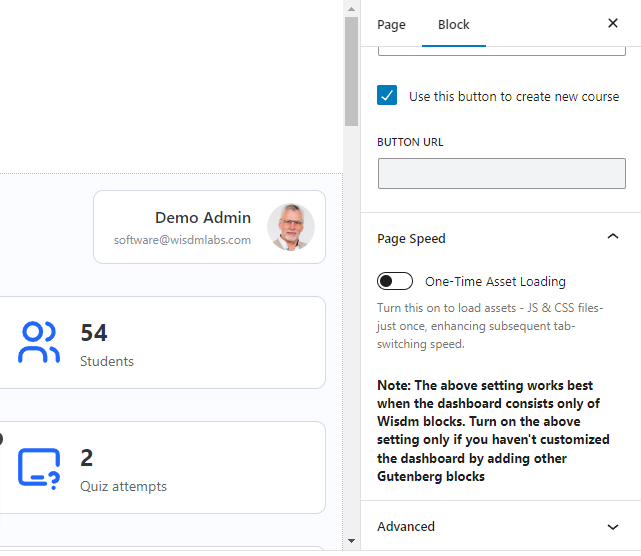
The Page Speed settings is an advanced setting for the Frontend Dashboard. It provides a One-Time Asset Loading feature toggle, which when enabled, gives the best experience to the user in terms of page load time and performance. This feature is only compatible with a dashboard created using blocks.
Primary CTA option #
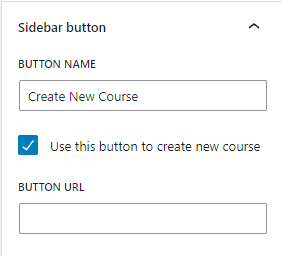
On the left sidebar of the Dashboard, you have theoption to add a prominent button at the top of the Tabs Menu. This button puts important and frequently-used actions right at the Instructors’ fingertips.
By default, the button is set as the Create New Course button, which can be confirmed by enabling the “Use this button to create a new course” checkbox. However, it can be customized to suit specific requirements by changing its title and URL in the block settings.
Instructor Overview block settings #
The Instructor Overview block provides a list of settings to control the visibility of sections on the overview page. By toggling the different counter and card display settings, you can choose which sections are visible to Instructors on the Frontend Overview Dashboard page.
Global Settings #
Global Settings are designed for sites that do not utilize the Gutenberg block editor, such as those still using the Classic Editor, or add-ons to disable the block editor. By default, Global Settings are disabled if your site has Gutenberg Editor enabled.
IMPORTANT: When using global settings, please refrain from directly editing or updating the dashboard page from the edit page screen. Instead, use the provided Global Settings to make any updates to the Frontend Dashboard.
Frontend Dashboard Page Settings #
When using Global Settings, all the different settings are applied to the page configured in the Frontend Dashboard Page setting. You can also create a new Frontend Dashboard page by clicking on the Create a New Dashboard Page link. This will update the selected Frontend Dashboard page to a newly created one.

Menu Settings #
Menu Settings allow you to enable or disable the different tabs and content displayed on the Frontend Dashboard. If a tab is disabled, it will be removed from the Frontend Dashboard and Instructors won’t have any access to the content or the functionality available in that respective tab. By default, all tabs are enabled, but you have the flexibility to hide specific tabs by disabling the corresponding toggle and saving the settings.

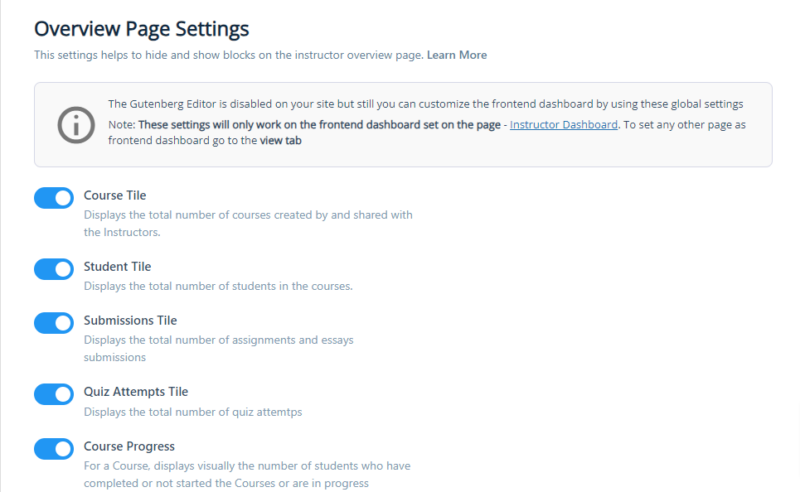
Overview Page Settings #
Overview Page Settings allow you to enable or disable the counters and card sections displayed on the Frontend Dashboard’s overview page. By toggling the specific setting toggles, you can control which counters or card sections are visible to instructors.
Appearance Settings #
Appearance Settings provide options to modify the color and typography settings used on the Frontend Dashboard. Similar to the Gutenberg editor settings, you have access to predefined color palettes, as well as a custom color palette to personalize the colors used on your Frontend Dashboard.
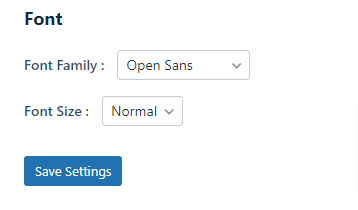
The font setting offers a selection of fonts for your Frontend Instructor Dashboard. The font size setting allows you to manage the font size, ranging from small to larger, to suit your preferences.

With these powerful customization options, you can make the Frontend Dashboard your own, aligning it with your unique brand identity and preferences. Enjoy the flexibility to create a customized and visually appealing Frontend Dashboard for an enhanced user experience.
Recreating the Frontend Dashboard #
If the Frontend Dashboard has been accidentally deleted, you can easily recreate it by referring to the Frontend Dashboard installation documentation.