
Instructors can now create and sell their own courses directly through your site using WooCommerce. By connecting LearnDash with WooCommerce, each course becomes a sellable product—giving instructors the opportunity to earn commissions from their sales.
To enable this functionality, make sure the following plugins are installed and activated.
1. WooCommerce 3.0.x
2.LearnDash WooCommerce Integration
How to Create a WooCommerce Product in The Instructor Dashboard #
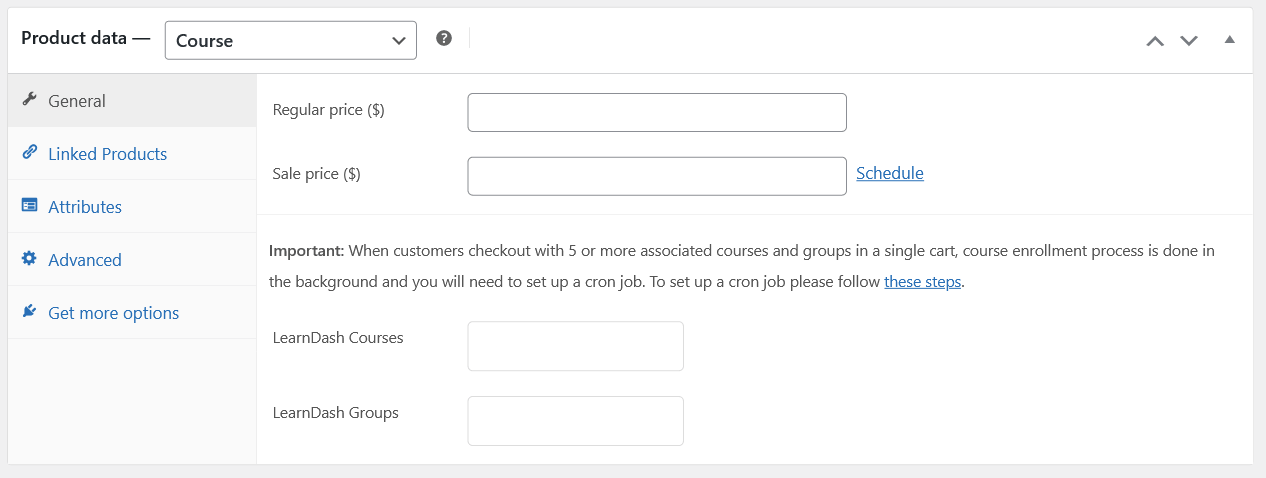
- From the Instructor Dashboard, go to Products Add New
- Enter the Product Title and the Pricing details
- Do not forget to add a Course
- Once all the information has been added and you are ready to make the product live, click Publish
Set up Paypal Payouts for Instructors #
With PayPal Payouts, site owners can send instructor commissions directly and instantly from their website. This automated process is available through the Instructor Role plugin, once the proper setup is complete.
Before enabling this feature, a few prerequisites must be in place. This article outlines what’s needed to successfully set up PayPal Payouts for instructor commissions.
Important: PayPal Payouts only works with a PayPal Business account, and the Payouts feature must be activated by PayPal.
Prerequisites for using PayPal Payouts #
To use PayPal Payouts, you will need to have the following:
- A PayPal business account: You can sign up for a PayPal business account at https://www.paypal.com/us/webapps/mpp/merchant
- Access to PayPal Payouts: You can request access by visiting: https://www.paypal.com/payoutsweb/landing
- A confirmed identity, email, and bank account linked to your PayPal business account: You must confirm your identity, email, and bank account linked to your PayPal business account before you can use PayPal Payouts
- Sufficient funds in your PayPal business account: You must have sufficient funds in your PayPal business account
How to request access to PayPal Payouts #
- Visit the PayPal Payouts landing page at https://www.paypal.com/payoutsweb/landing
- Click on the Get Started button
- Provide information about your business needs to ensure the solution is a good fit for you
- Submit your application
PayPal will review your application and email you with a decision. In the meantime, you can set up and test your integration in your sandbox accounts.
Activating Payouts #
Activating PayPal Payouts is an essential step in the setup process. Without activation, the payouts feature will not function, regardless of other settings.
Due to recent updates in PayPal’s terms and conditions, activation is now managed directly by PayPal. If payouts are not yet enabled on the PayPal Business account, site owners must contact PayPal Support to request access.
Reach out to PayPal early in the setup process to avoid delays in enabling Instructor payments.
To activate payouts, follow these steps:
- Log in to your PayPal business account
- Click on Settings in the top right corner
- Click on Payment settings from the dropdown menu
- Click on Manage payouts in the Payouts section
- Follow the instructions to activate payouts
Once all prerequisites are in place, site owners can begin using PayPal Payouts to pay instructors through the Instructor Role plugin.
Creating a new API Application #
You will be using PayPals Payouts API to send money to your instructors. First, create an API Application. Log in to PayPal using your credentials and then visit My Apps in the PayPal Developer portal to create a new API Application.
You do not need to be a developer to create the application, you just need a set of credentials that will help the plugin send payment requests to PayPal on your behalf. When you visit the My Apps and Credentials screen you will see the following screen:
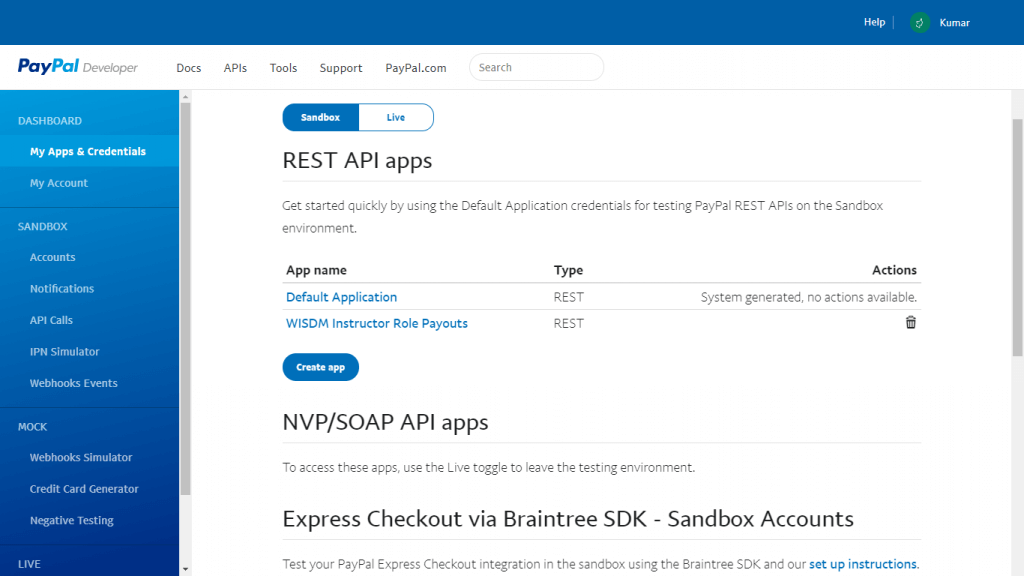
Click on Create App under the REST API apps section to create a new app. You can start with a Sandbox account to test how the application works.
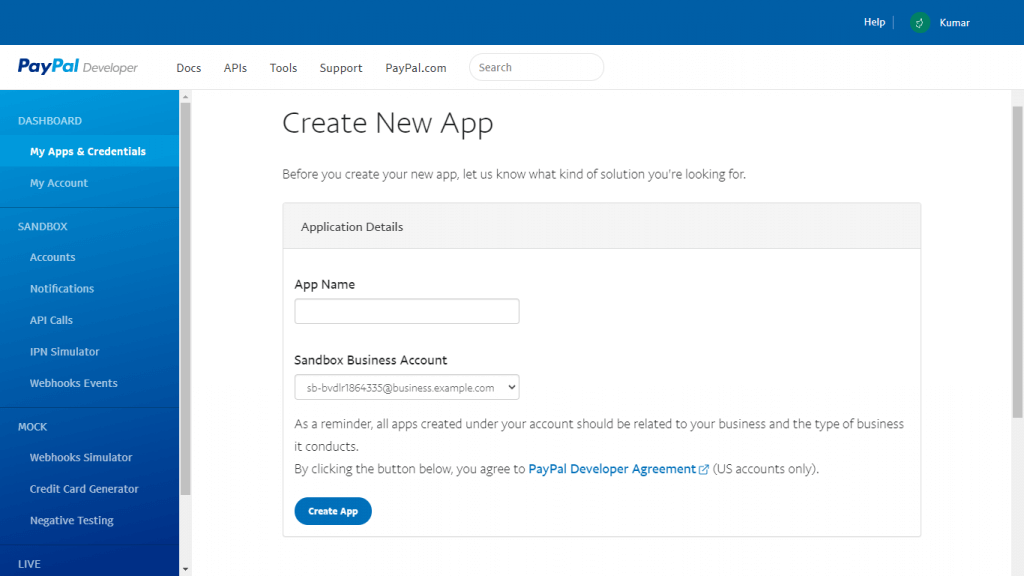
Enter Instructor Role Payouts as the App name and either keep the default sandbox account selected or select another one if you have and then click on Create App. Once you have created the App you can click on its name anytime to view its details.
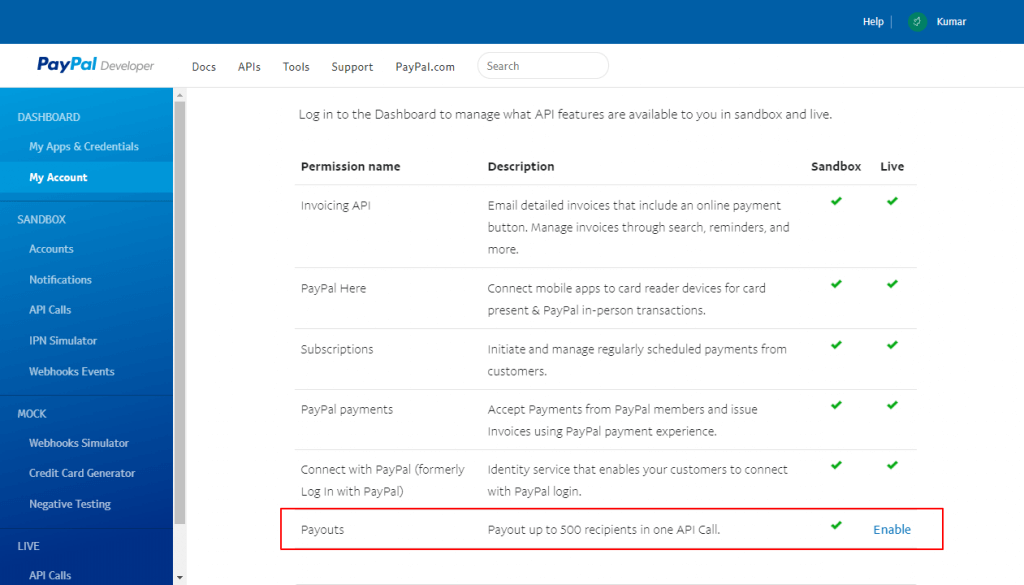
When you are done with your sandbox testing, you can follow the same procedure for creating a live API application. Toggle to Live instead of Sandbox in the first step. Then, you will need to enable Live Payouts permission from the My Account page on your PayPal Developer Dashboard.
Configuring Instructor Payout Settings #
Now that the API application is set up on your PayPal account, log into your website as admin and visit LearnDash LMS > Instructor > PayPal Payouts.
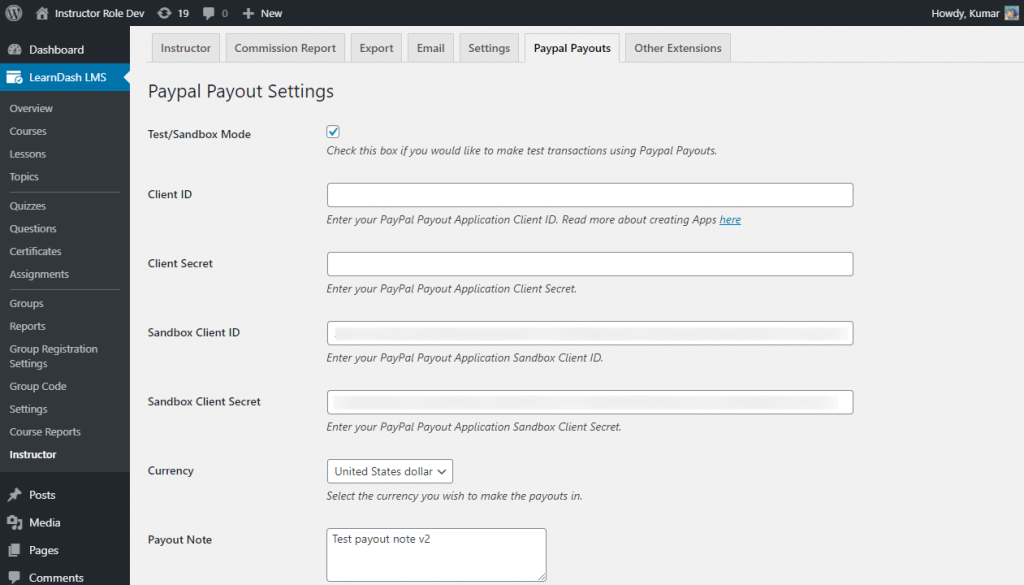
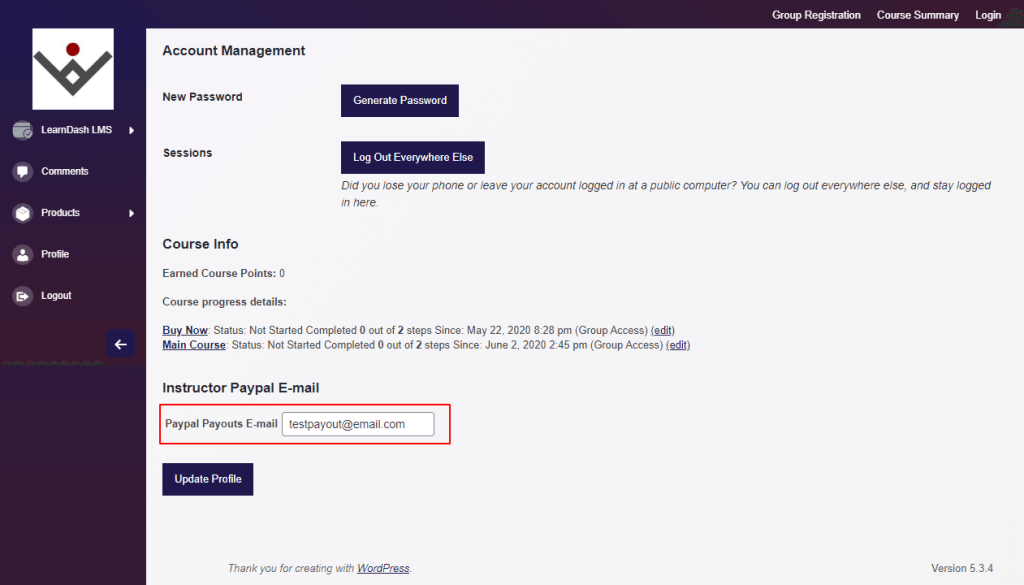
Configure all the necessary settings and click on save to save them. Instructors need to save their PayPal email addresses from the Instructor Dashboard by accessing the Profile section.
Subscription Products and Instructor Commissions #
Instructor commissions for WooCommerce subscription products are only paid on the first payment. This is the intended behavior of the Instructor Role plugin.
- When a customer purchases a subscription product linked to a course, the instructor will receive the commission percentage you set only on the initial payment.
- Subsequent recurring payments on that subscription will not trigger additional commissions automatically.
This design ensures that commissions are calculated on the initial sale rather than for every installment.