Skip to content
LearnDash Support
  • Products

      LearnDash LMS Plugin

      Powering intuitive online courses with advanced management and engagement features for WordPress.

      Learn More

      LearnDash LMS Plugin + Hosting

      StellarSites Learning is a fully managed hosting solution for WordPress.

      Learn More

      Premium LMS Add-ons
      Enhance your courses with extra features. Gather insights, reward learners, protect your course content, and more!

      Explore all Add-ons

      MemberDash
      The most flexible membership plugin for WordPress. Monetize your content and build a community.

      View MemberDash

  • Pricing
  • Add-ons & Integrations

      LEARNDASH ADD-ONS

      Instructor Role

      Empower Instructor to manage courses.

      Groups Management

      Organization management, delegation and more

      ProPanel

      Advanced analytics reporting.

      Gradebook

      Track progress and create report cards.

      Notes

      Enable notetaking and two-way communication.

      Rating, Reviews, & Feedback

      Build trust and gain valuable insights.

      FEATURED INTEGRATIONS

      The Events Calendar

      Connect with the most popular events solution.

      BuddyBoss

      Powerful tools for an enhance learning experience.

      WooCommerce

      The most popular shopping cart on WordPress.

      WeGlot

      Translate your LearnDash content.

      All Integrations

      BUNDLES

      Package and save
      Save when you buy multiple plugins in a bundle.

      See all bundles.

      MORE

      Release Notes

      Get Help

  • Resources
      LearnDash Academy Videos, webinars, and resources to help you launch a successful course.
      Blog Blog
articles with the latest news and tips to help you run high-quality courses.
      Knowledge Base A support network to help you make the most of your courses.
      Release Notes Stay up-to-date with the latest updates to LearnDash.
      Get Help

      Professional Services

      LMS Site Development Get hands-on assistance launching your course website.
      Website Maintenance WordPress management made easy.
      SEO Services SEO solutions that accelerate growth.

      Other Resources

      LearnDash Accessibility At LearnDash, we believe online learning should be accessible to everyone.
      Join the Dev Club
  • Demo
  • Sign In
Get LearnDash

Knowledge Bases: Support Home | LearnDash Core | LearnDash Add-ons | LearnDash Cloud | Resources | Mobile App

LearnDash Support
  • ← Return to LearnDash
  • Support
    • Support Home
    • All Knowledge Bases
    • LearnDash Core
    • Add-ons
    • Resources
    • Cloud
  • My Account
Popular searches: api duplicate couse email gp query loop [ld_course_resume]

ProPanel

1
  • ProPanel

Instructor Role

34
  • Intro to Instructor Role
  • Instructor Overview Page
  • Instructor Dashboard
  • Instructor Dashboard Menu
  • Adding Instructors
  • Multiple Instructors
  • Instructor Commissions
  • Selling Courses Through WooCommerce
  • Instructor Profile
  • Profile Introduction Sections
  • Create Learning Content And Quizzes
  • Instructor Role Reports
  • Instructor Notifications
  • Instructor Role Email Settings
  • Review Instructor Course Updates
  • Instructor Groups Access
  • Instructor Comments Access
  • Student Teacher Communication
  • Multiple Instructors Shortcode
  • Instructor Dashboard Settings
  • Instructor Role Color Schemes
  • Commission Logs
  • Instructor Role Navigation Settings
  • Instructor Role Overview Settings
  • Instructor Role Menu Settings
  • Frontend Course Creator
  • Frontend Quiz Creator
  • Frontend Dashboard: Installation Guide
  • Frontend Dashboard for Instructors: Gutenberg Blocks List
  • How to Customize the Frontend Dashboard
  • How to disable the WordPress admin page for Instructors
  • Introducing Frontend Dashboard
  • Elementor Compatibility
  • Setup PayPal Payouts for Instructors

Ratings, Reviews, & Feedback

1
  • Ratings, Reviews, & Feedback

Elementor Add-on

1
  • LearnDash Elementor Addon

Groups Plus

6
  • Group Leader
  • Create an Organization
  • Getting Started with Groups Plus
  • WooCommerce LearnDash Teams Products
  • Front-end Dashboard
  • Groups Plus FAQ

2Checkout Add-on

1
  • 2Checkout Integration

bbPress Add-on

1
  • bbPress Integration

Easy Digital Downloads Add-on

1
  • Easy Digital Downloads Integration

Event Espresso Add-on

1
  • Event Espresso Integration

Gravity Forms Add-on

1
  • Gravity Forms Integration

MemberPress Add-on

1
  • MemberPress Integration

Notifications Add-on

1
  • Notifications Add-On

Paid Memberships Pro Add-on

1
  • Paid Memberships Pro Integration

Restrict Content Pro Add-on

1
  • Restrict Content Pro Integration

SamCart Add-on

1
  • SamCart Integration

Stripe Add-on

1
  • Stripe Add-on Deprecation FAQ

The Events Calendar Add-on

1
  • The Events Calendar Integration

ThriveCart Add-on

1
  • ThriveCart Integration

WooCommerce Add-on

1
  • WooCommerce Integration

Zapier Add-on

1
  • Zapier Integration

Compatibility Add-on

1
  • Compatibility Add-Ons

Certificate Builder Add-on

1
  • Certificate Builder Add-On

Achievements Add-on

1
  • Achievements Add-On

Integrity Add-on

1
  • Integrity Add-on

3rd Party Plugins

1
  • 3rd Party Plugins

Gradebook

1
  • Gradebook Add-On

Notes Add-on

1
  • Notes Add-On

Groups Management

4
  • Groups Management
  • Global Settings
  • Groups Plus Add-On
  • Group Registration for LearnDash
View Categories
  • Home
  • All Knowledge Bases
  • Add-ons
  • Gravity Forms Add-on
  • Gravity Forms Integration

Gravity Forms Integration

The LearnDash Gravity Forms integration allows you to register new users on your site and instantly provide them access to one (or more) of your courses. It can be used to create a signup form, both for free courses, as well as those that require payment (using one of Gravity Forms payment add-ons).

Requirements #

Before you can use this integration, you will need:

  • LearnDash
  • Gravity Forms plugin (the Elite license)
  • Gravity Forms User Registration add-on enabled

Upload & activate the Gravity Forms plugin #

  1. Download the Gravity Forms plugin from your account page on gravityforms.com
  2. In the WordPress admin area, navigate to Plugins > Add New
  3. Click the Upload Plugin button
  4. Click the Choose File button
  5. Select the Gravity Forms .zip file you downloaded in step 1
  6. Click Install Now
  7. Click Activate Plugin

Enter your Gravity Forms license key #

You can follow along with the setup wizard, but if you’d rather enter your license key manually:

  1. Go to Forms > Settings
  2. Enter your license key (from your account page on gravityforms.com)
  3. Click the Save Settings button at the bottom
enter license key for Gravity Forms

Enable the Gravity Forms User Registration add-on #

  1. Go to Forms > Add -Ons
  2. Scroll down to the User Registration Add-On
  3. Click the Install button
  4. Click the Activate button
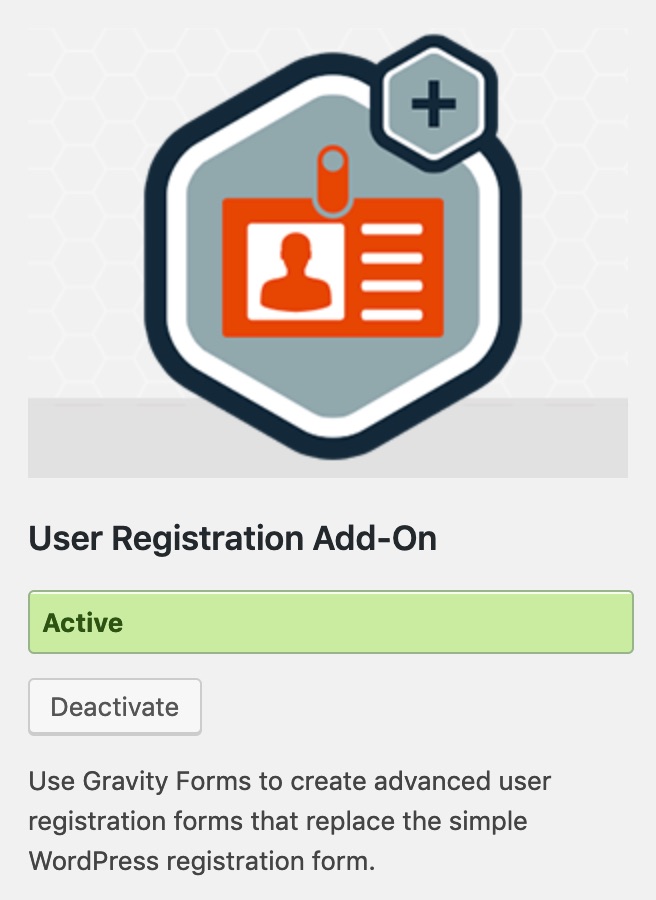
Gravity Forms user registration add-on

Install the LearnDash Integration #

Option 1: Add-ons Menu (requires an active LearnDash license) #

In your WordPress admin area, go to LearnDash LMS > Add-Ons and locate the Gravity Forms for LearnDash add-on. Click Now and once the installation is complete, click the Activate plugin button.
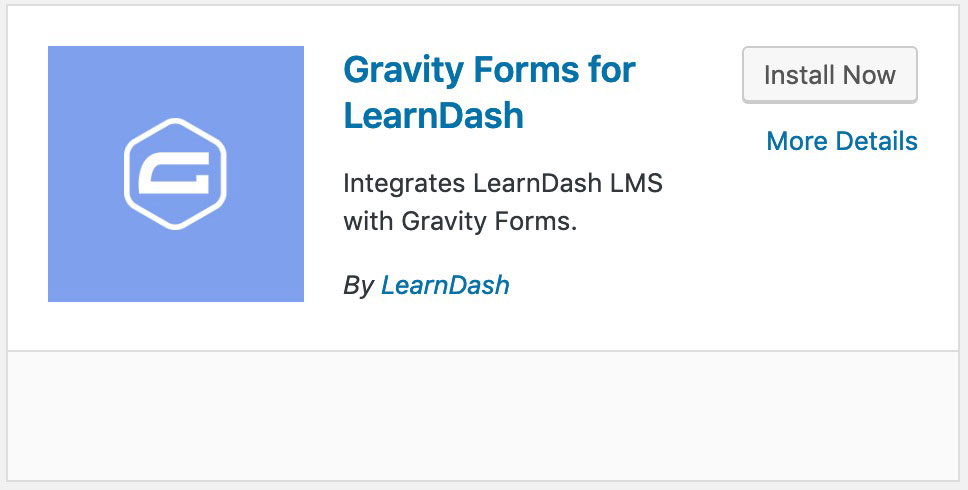
Gravity Forms for LearnDash plugin

Option 2: Manual Upload #

Download the plugin file (remember that you must be logged in to download). In your WordPress admin dashboard go to Plugins > Add New and then Click to upload the Gravity Forms for LearnDash plugin. You’ll need to browse for the plugin .zip that you downloaded previously. Once you find it (it may be in your computer’s Downloads folder), click Open, Install Now and finally, click the Activate Plugin button.

Create a Form #

To use the integration, you’ll need a form to assign courses to. Follow Gravity Forms documentation on creating a form.

You can include as many form fields as you’d like, but the email field is required for user registration to work. You might also want to include:

  • Name
  • Username
  • Password

* All of these fields can be found under “Advanced Fields.”

Name is not required, but in most cases, you’ll want to ask for it.

Username can be set to the email address, any other form field, or you can allow the user to choose one upon signup.

Password can be automatically generated upon completion of the form, or you may choose to include this field in your form to allow the user to choose one upon signup.

Gravity Forms advanced fields

Now that your form is ready, you’ll need to set up a user registration feed.

Configure User Registration #

Before assigning LearnDash courses to your new users, you’ll need to create a user registration feed. Since this is a Gravity Forms feature, please follow their instructions on setting up a user registration feed.

Gravity Forms user registration feed page

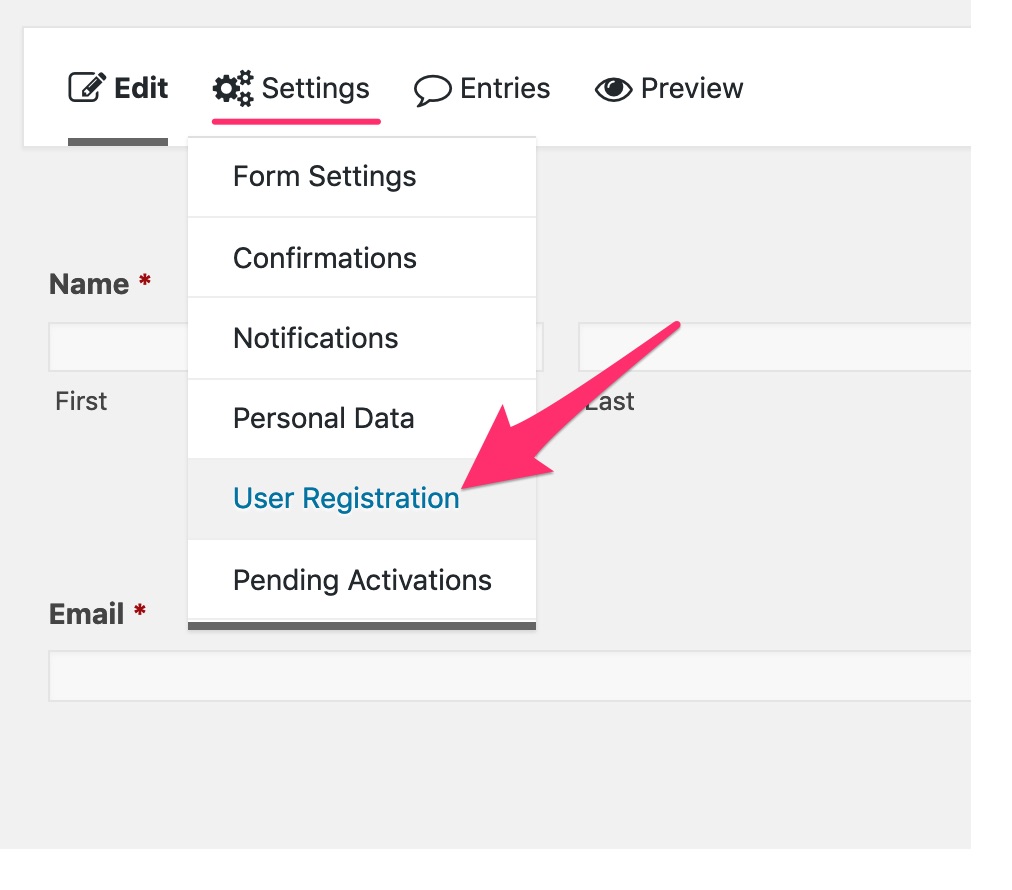
To get started, from the Edit Form page:

  • Go to Settings > User Registration
Gravity Forms settings > user registration menu

You are free to experiment with different settings, as there is no definitive way to set this up. However, for the simplest setup, we recommend the following:

Feed Settings #

  • Name: Anything you’d like
  • Action: Create user

User Settings #

  • Username: Either use the “Email” form field, or provide a specific “Username” form field
  • First Name: Name (First)
  • Last Name: Name (Last)
  • Nickname: Name (First)
  • Display Name: {first name} {last name}
  • Email Address: Use the “Email” form field
  • Password: Either provide a Password form field, or choose Auto Generate Password
  • Role: Subscriber

If you’re using custom roles, LearnDash groups, etc., you might want to assign a different role.

Additional Options #

These are beyond the scope of this article. Please reference Gravity Forms documentation for more info.

Assign LearnDash Courses #

The final step is to assign a course (or courses) that the user will be enrolled in once they submit the form.

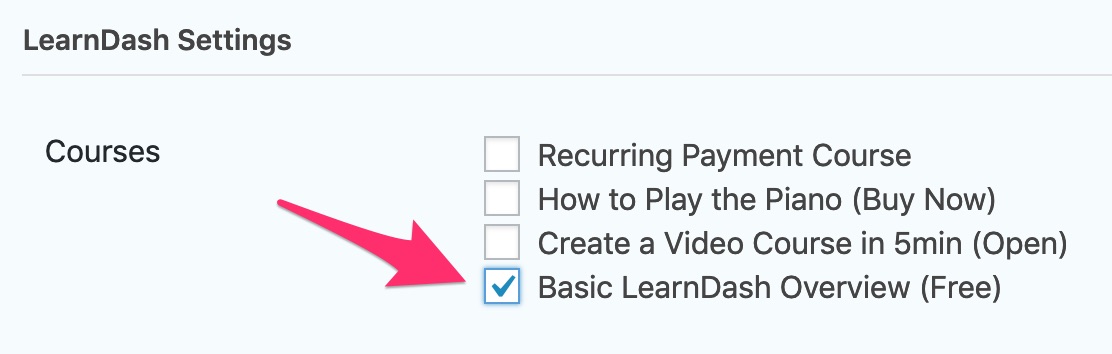
  1. Locate the final group of settings on the User Registration Feed titled LearnDash Settings
  2. Check the box(es) next to the course(s) you want the user to be enrolled in
  3. Save/Update your settings
Gravity Forms registration, LearnDash settings

Congratulations! Now when someone successfully submits the form, a new user account is created for them, and they will be automatically enrolled in the associated course(s).

Require Payment #

In addition to allowing free user registration, Gravity Forms also provides a way to charge for your courses during the signup process. To enable this, you will need an account with one of Gravity Form’s payment gateway add-ons. Most of the payment add-ons require the Elite license of Gravity Forms.

IMPORTANT: When using paid courses the Paid Form feature needs to be enabled by ticking the box in the LearnDash Settings option.

Gravity Forms payment options include:

  • Stripe (docs)
  • PayPal Payments Standard (docs)
  • PayPal Payments Pro (docs)
  • 2Checkout (docs)
  • Authorize.net (docs)

Use the “docs” links above to follow Gravity Form’s documentation on setting up each payment add-on.

Updated on June 19, 2025
Table of Contents
  • Requirements
    • Upload & activate the Gravity Forms plugin
    • Enter your Gravity Forms license key
    • Enable the Gravity Forms User Registration add-on
  • Install the LearnDash Integration
    • Option 1: Add-ons Menu (requires an active LearnDash license)
    • Option 2: Manual Upload
  • Create a Form
  • Configure User Registration
    • Feed Settings
    • User Settings
    • Additional Options
  • Assign LearnDash Courses
  • Require Payment

Was this Doc Useful?

Thanks for your feedback!

Products

  • LearnDash LMS Plugin
  • MemberDash Plugin
  • LearnDash Cloud
  • ProPanel
  • Groups Management
  • Gradebook
  • Notes
  • Integrations

Support

  • Contact Us
  • Experts
  • Documentation
  • Facebook Community

Company

  • About LearnDash
  • Brand Assets
  • Careers
  • Affiliates
  • Privacy Policy
  • Terms and Conditions
  • Refund Policy

Our Partners

  • The Events Calendar
  • MemberDash
  • Kadence
  • GiveWP
  • Iconic
  • SolidWP

Stay Connected Subscribe to our newsletter
  • YouTube
  • X
  • Facebook
  • Instagram

Copyright 2026. All Rights Reserved.

A Liquid Web Brand
WordPress Hosting Services
© 2026 All Rights Reserved

StellarWP
liquidweb