
The Frontend Quiz Creator allows theAdministratorsandInstructorsto create and edit LearnDash quizzes on the frontend of the website.
Activating Frontend Quiz Creator #
- The Frontend Quiz Creator depends on the Frontend Course Creation (FCC) setting.
- Admin can activate/deactivate FCC from WP dashboard LearnDash LMS Instructors Frontend Course Creator

IMPORTANT: In order for the Frontend Course and Quiz Creator to function, your permalink structure must be set to pretty permalinks (i.e anything except plain permalink structure), and you must save the permalink settings again after enabling the Frontend Course Creator.
NOTE: In case you already had the Frontend Course Creator settings enabled, you may still have to save your permalinks again after the Frontend Quiz Creator update.
Settings #
Enable Frontend Course Creator #

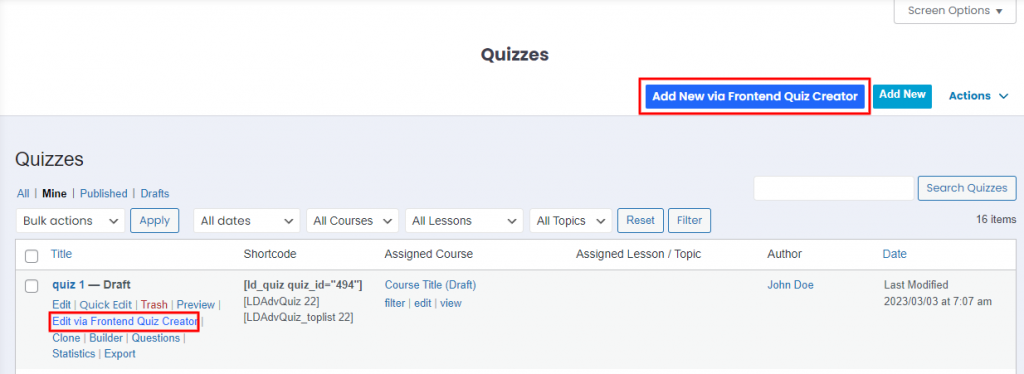
Enabling this setting will add anEdit via Frontend Quiz Creatoroption in the quiz edit menu (Image below) and add a buttonAdd new via Frontend Quiz Creator beside LearnDash’s Add New button
Accessing the Frontend Quiz Creator #
As per the above-configured settings, the Instructors /Admins can create/edit a quiz
- From the Quiz Listing page
- Theinstructorcan go to theInstructor Dashboard Quizzes Edit Via Frontend Quiz Creator / Add new via Frontend Quiz Creator
- Theadministratorcan go toWP Dashboard Quizzes Edit Via Frontend Quiz Creator / Add new via Frontend Quiz Creator
- From the Frontend Course Creator while creating/editing a course
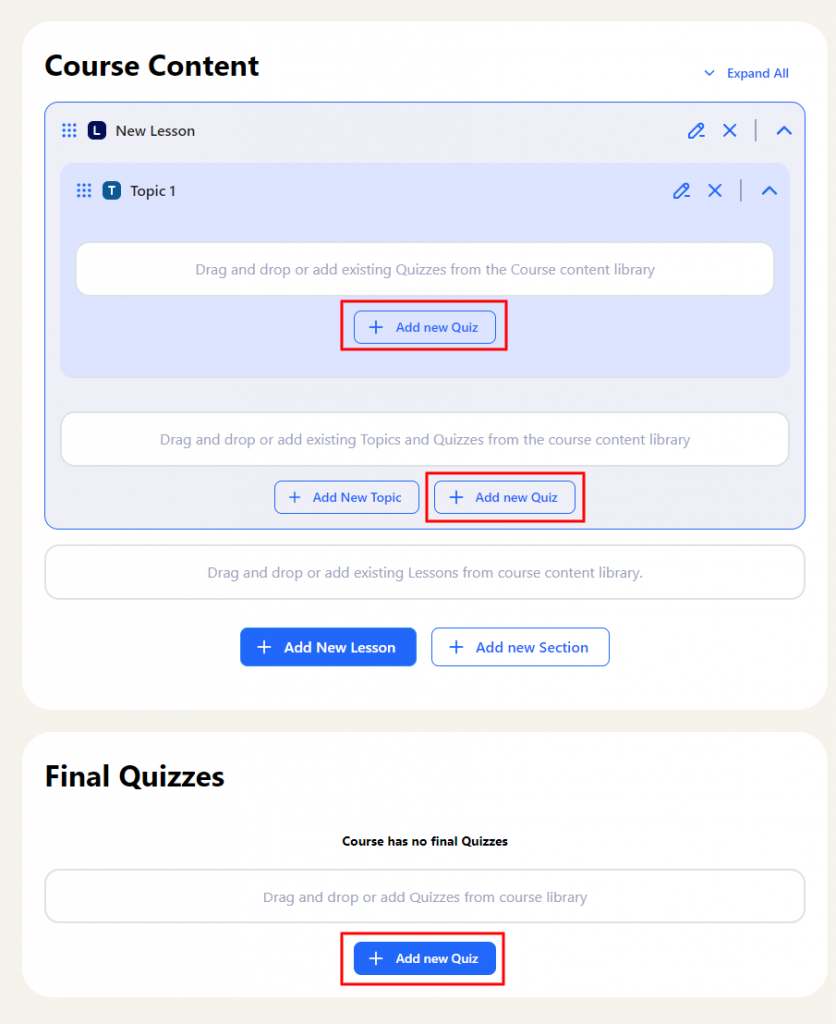
- Go to the builder tab in the Course creator and click on Add New Quiz or edit existing quizzes added to the course content
Using the Frontend Quiz Creator #
Create a Quiz #
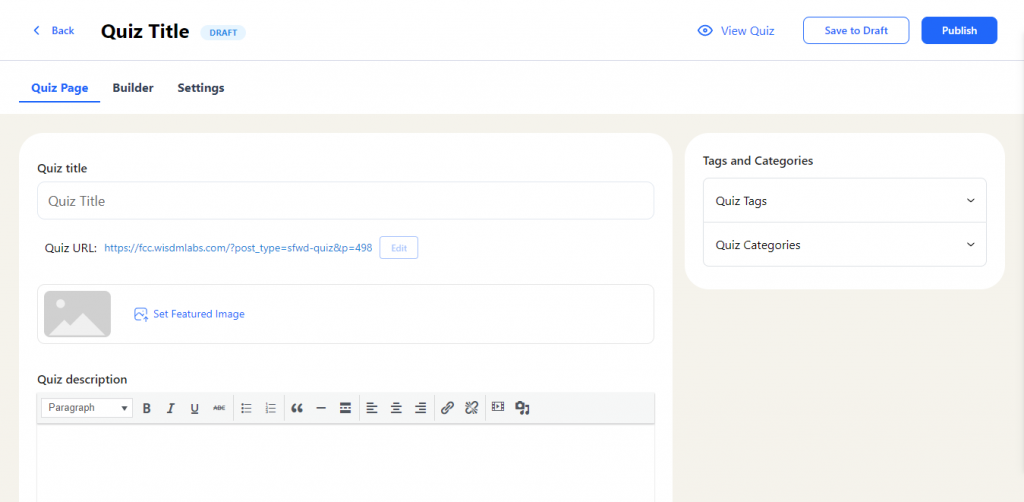
- To create a new quiz click on theAdd new via Frontend Quiz Creator Buttonon the Quizzes listing page
- This will make a draft quiz and take you to the frontend quiz creator to add all the content and configure the settings to create the quiz.
- As shown below you can also create a new quiz from the Frontend Course Creator while creating/editing a course by clicking on theAdd New QuizButton
- On clicking the button, a new modal will open to enter the name of the Quiz.
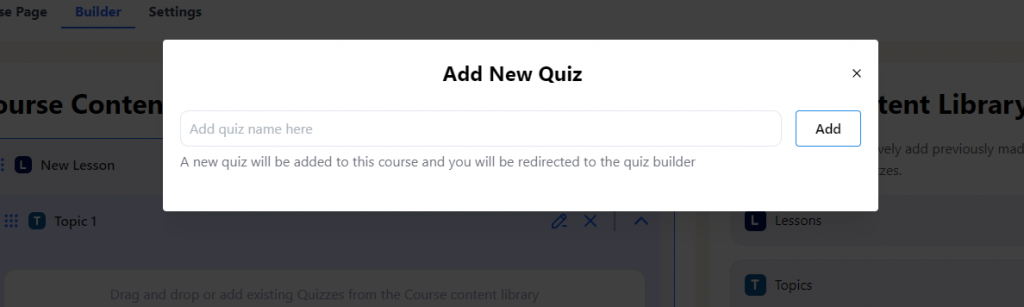
- After clicking onAdd,anew quiz will be added to the builder, and the frontend Quiz Creator will open in a new tab
to edit the new quiz.
Edit a Quiz #
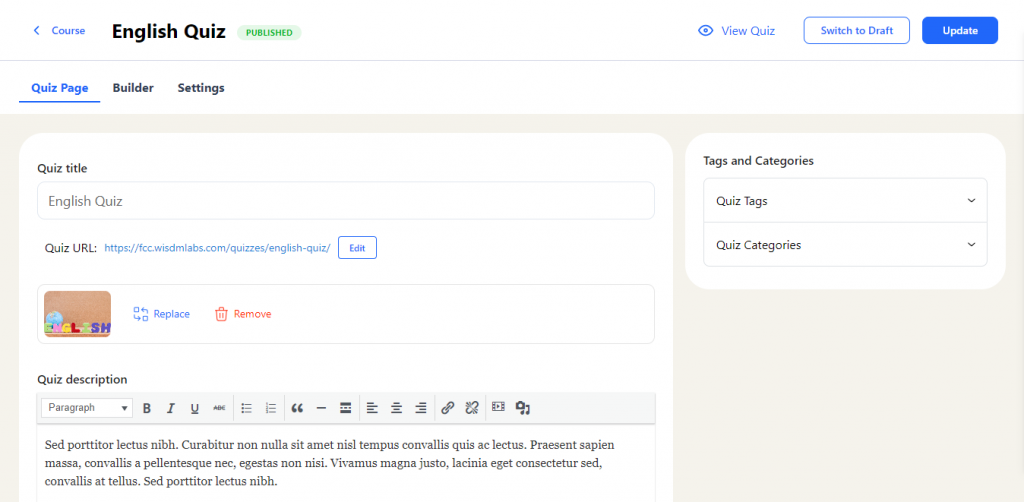
To edit a quiz using the Frontend Quiz Creator you can click theEdit via Frontend Quiz Creator Link by hovering over the quiz title on the quiz listing page.
Quiz Builder #
The quiz builder allows: #
- Organizing the quiz questions
- Adding new questions or using existing questions to create a quiz
Note: Currently, Single choice, Multiplechoice, Fill in the blank, Assessment (survey) and Essay (open-answer) question types can be created and edited from the Frontend Quiz Builder. All other types of existing questions can be added via the Question library but such questions cannot be created/edited via the Frontend quiz creator as of now.
Organizing the Quiz questions #
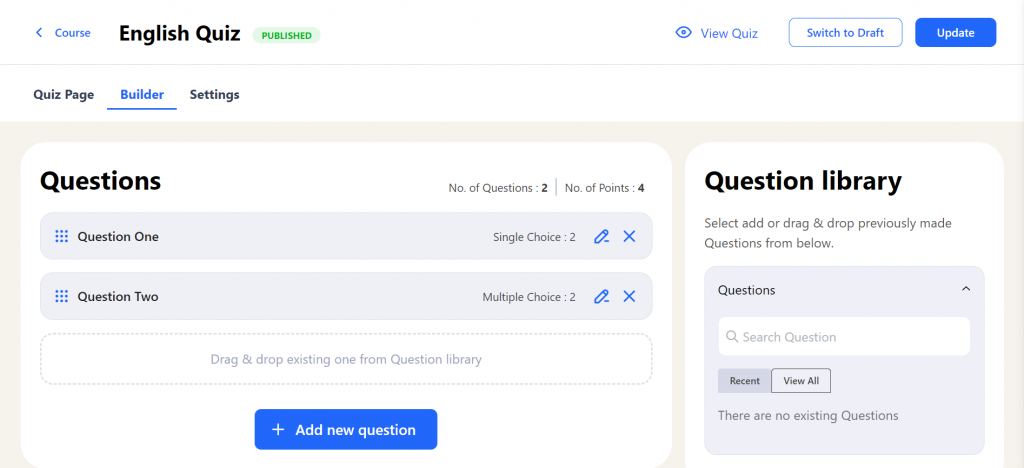
You can manage questions from the Quiz Builder Tab and perform the following actions
Create New Question or Edit the Question #
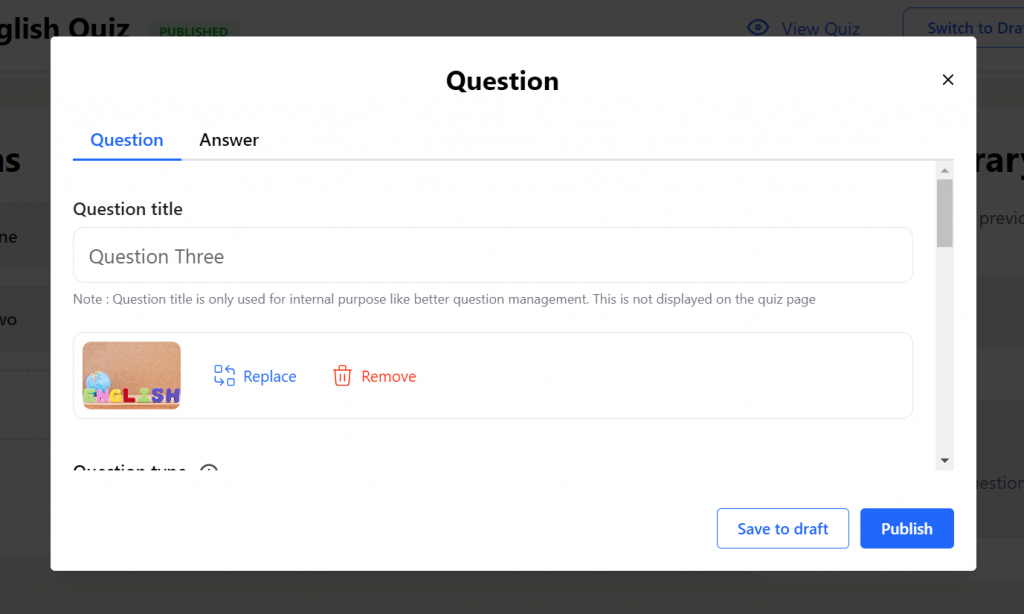
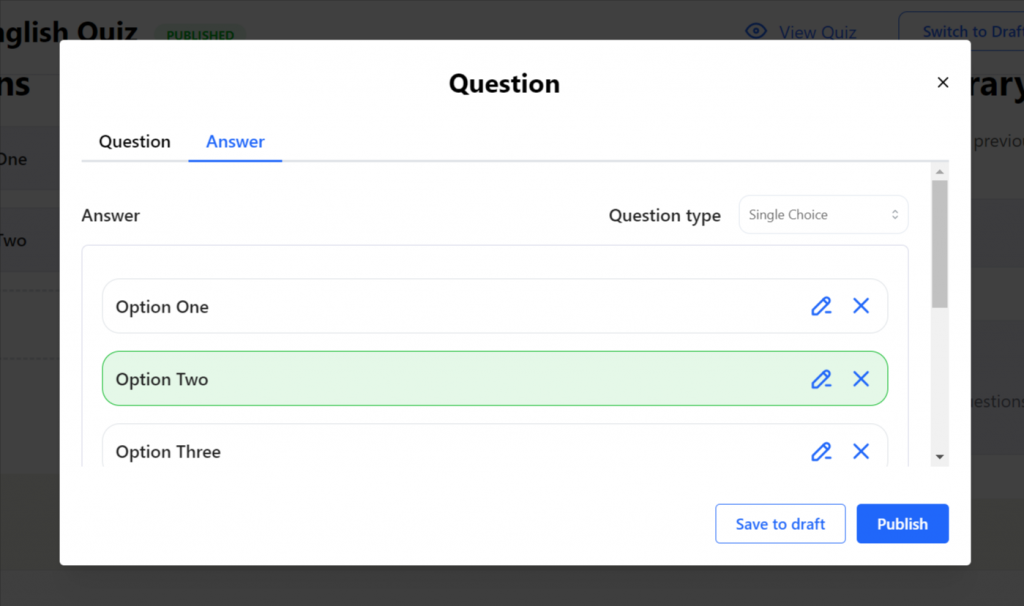
- You can create a new question by clicking onAdd New Questionbutton.
- A modal opens up to configure the Question and Answer settings.