
The LearnDash quiz builder provides a quick, intuitive way to add, edit, move and delete all the questions in your quiz. This article explains how to use every aspect of the quiz builder to make creating quizzes and managing questions a breeze.
NOTE: The quiz builder is enabled by default, but if you don’t see it when editing your quiz, double-check that it’s enabled in your global quiz settings.
Access the Quiz Builder #
There are a few ways you can access the LearnDash quiz builder.
For Existing Quizzes #
If you’ve already created a quiz:
- Navigate to LearnDash LMS > Quizzes
- Hover over an existing quiz
- Click the “Builder” link

Alternatively, you can click on the quiz title or “Edit” link to bring up the “Edit Quiz” page. Once there, click the “Builder” tab in the top navigation bar.

Creating Your First Quiz? #

- Navigate to LearnDash LMS > Quizzes
- Click the “Add New” button at the top of the page
- Click the “Builder” tab in the top navigation bar
Quiz Builder Overview #
At the top of the quiz builder, you’ll see:

- The total number of questions in the quiz
- A link to “Expand All” or “Collapse All” questions
- This allows you to see all questions and answers at a glance, and more quickly rearrange, add or remove questions
- An “Undo” link to undo any unwanted changes you’ve made
Then you’ll see all of your questions. This is where you’ll spend the majority of your time constructing your quiz.

Add Questions to Your Quiz #
There are multiple ways to add questions with the quiz builder. This will depend on a few things:
- if you’re sharing questions across multiple quizzes, and want to add existing ones
- if you’re adding brand new questions
- personal preference
New Questions #
To add a brand new question to a quiz:
- At the bottom of the quiz builder, click the + New Question link
- Type the name of your question (internal use only)
- Hit Enter, or click the “Add Question” button

Existing Questions #
All of your existing questions can be found in the “Questions” box in the sidebar. By default, your most recent questions are shown, but you can click “View all” to see all questions, or use the search box to find a specific question by its title.
NOTE: If you don’t see the questions box depicted below, click the  icon to display the sidebar.

There are multiple ways to add existing questions.
Add a single question: Hover over a question in the question box and click the “Add” button. This will add the question to the end of your quiz.

Add multiple questions: Select the checkbox next to multiple questions, and then click the “Add Selected” button. This will add all selected questions to the end of your quiz.

Drag and drop: If you’d like to add questions to a particular spot in your quiz, you can click and hold down your mouse, drag the question to the quiz builder in the spot you want it, and then release. This will place the question in your specified location in the quiz.

Edit Questions #
Questions have a few different parts to them, so let’s cover each area one at a time.
Question Title #
Like we previously mentioned, the title is only for internal use, but it can be extremely helpful for the admin to find/edit questions on the backend.

To edit the question title in the quiz builder:
- Hover over the question whose title you’d like to edit
- Click the pencil icon
- Edit the title
- Hit Enter, or click the “Save” button
For all other edits to the question, or its answers, you need to expand the question by clicking on the blue down arrow on the right. Alternatively, you can expand all questions at once using the “Expand All” link at the top of the quiz builder.
Question #

To edit the actual text of the question:
- Next to the Question, click the pencil icon
- Edit your question
- Click the “Save” button
Answers #
Editing answers in the quiz builder will depend on the question type. Different types have different options. As soon as you select the question type, your answer options will update below.
Add Answers #
The following question types provide the ability for you to add more than one answer:
- single choice
- multiple choice
- sorting
- matrix sorting

For these question types, you can add new answers directly in the builder.
- Click the + New Answer link
- Enter your new answer
- Click the “Add Answer” button
Edit Answers #
Editing answers will look different, depending on the question type. However, all answers and answer options can be edited in the quiz builder by clicking the pencil icon.
Here’s an example editing an answer for a single choice question:

Select Correct Answers #
For single choice and multiple choice questions, you can select one or more correct answers.
- To the right of each answer, you’ll see a “Correct” option
- For single choice questions: choose the single radio button that corresponds with the correct answer
- For multiple choice questions: choose each checkbox that corresponds with a correct answer
The correct answer(s) is displayed in bold in the quiz builder.
Move Answers #
The following question types contain answers which can be reordered:
- single choice
- multiple choice
- sorting
- matrix sorting

To rearrange the order of answers:
- Locate the 6 dots to the left of the answer
- Click, hold down your mouse, and drag the answer to a new location
Remove Answers #
To remove an answer in the quiz builder:
- Hover over the answer you’d like to remove
- Click the red “Remove” link

For all other question types, the answer options vary. Please refer to our question types documentation to see all available options.
Points #

You can indicate a different number of points for each question. To edit the amount of available points for a question:
- Click the pencil icon next to “__ points”
- Edit available points
- Hit Enter, or click the “Save” button
You can enable the Different points for each answer in Quiz Builder:
- From the Question type in the Quiz Builder, click on Question Settings
- Enable the toggle for Different points for each answer > Save changes
- You can now add different points per answer by clicking on the Pencil Icon
- It should show you an input box to add Points for the Question Answer
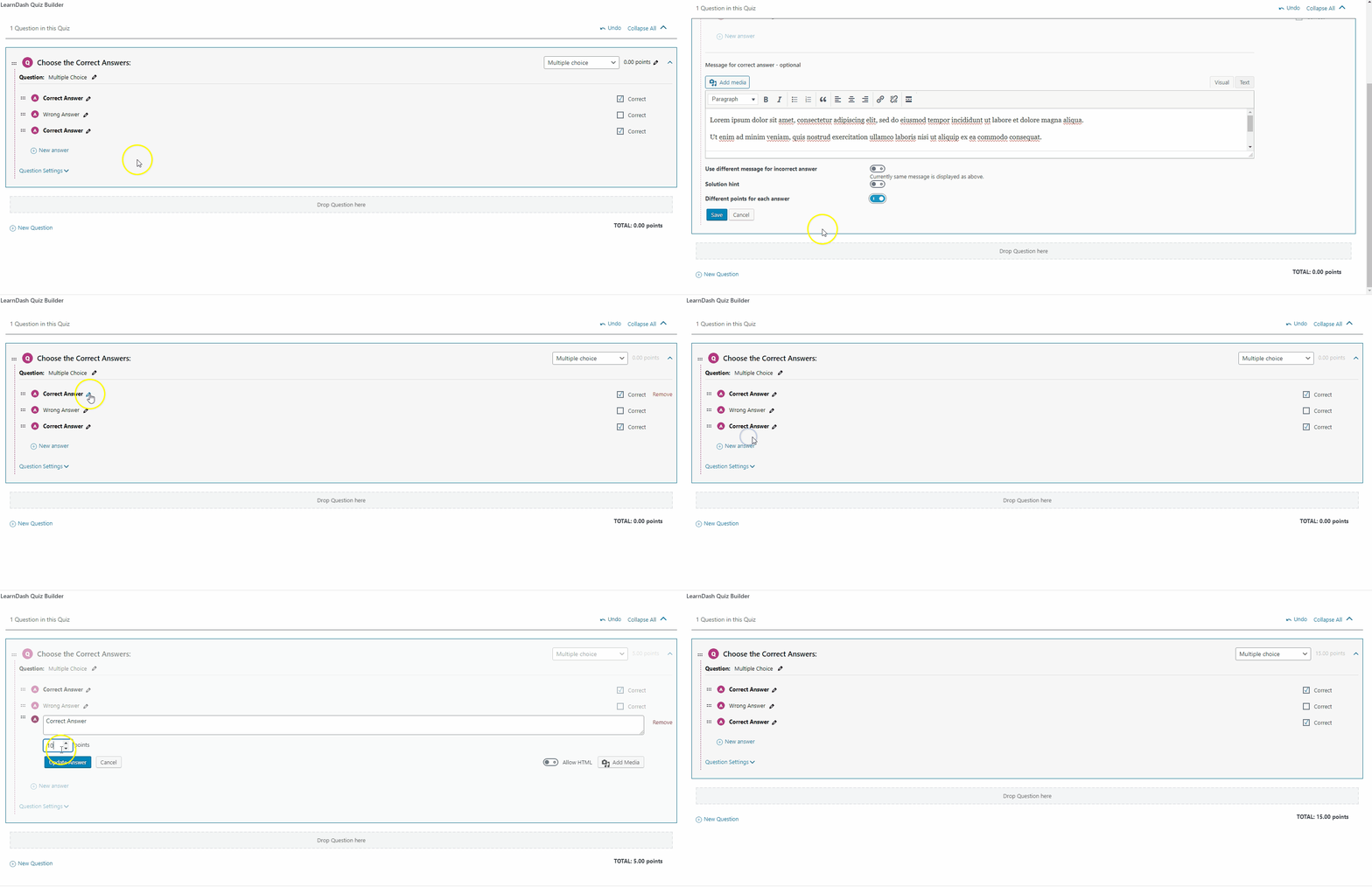
NOTE: Setting up different points for each answer does not support Assessment and Essay/Open Answer question types.
Question Type #

To edit the question type:
- Click on the question type dropdown menu
- Choose a new question type
The answer options will automatically update as soon as you change the question type. Check out this documentation on different question types and how they are used.
Question Settings #
Question settings are the same across all question types.
To access question settings in the quiz builder:
- Look for the “Question Settings” link below the answers

Since these settings are also available on the dedicated Edit Question page, please see the following documentation for:
Question Categories #
Currently, these cannot be set within the quiz builder. Please see this page for instructions.
Finally, if you need to open a question’s dedicated edit screen:
- Hover over a question
- Click the blue “Edit” link

NOTE: We recommend opening the question page in a new tab so you don’t lose any unsaved changes to your quiz.
Remove Questions #
To remove a question from your quiz:
- Hover over the question
- Click the red “Remove” link
NOTE: This only removes the question from this particular quiz. It will still remain in your full list of questions, and if using it on another quiz, that quiz will not be affected.
Rearrange Questions #
In addition to adding and editing questions, you can also use the quiz builder to move them around. You’ve got two options.
Drag and Drop #
Immediately before each question, you’ll find an icon with 6 dots. When you hover over this icon, your cursor will turn into a hand. This means you can click, hold down, and drag the question to another place within your quiz.

Arrows #
Also located before each question, you’ll find up and down arrows above and below the drag and drop icon. Clicking these arrows will move the question either up or down.
