
Certificate shortcodes are exclusively for creating LearnDash certificates. They allow you to display dynamic information about the user, as well as the course or quiz that you’re awarding the certificate for. You can insert the user’s name, course title, date of completion, quiz grade and much more.
There are 4 main shortcodes, and then each shortcode has a handful of parameters to output various information.
[usermeta]displays user info[courseinfo]displays course info (only works with certificates assigned to a course)[quizinfo]displays quiz info (only works with certificates assigned to a quiz)[groupinfo]displays group info (only works with certificates assigned to a group)
All certificate shortcodes are also listed in the WordPress admin area under LearnDash LMS > Certificates. Click on the Shortcodes tab at the top.

Looking for the full list of shortcodes you can use throughout your LearnDash site? See all shortcodes.
Gradebook Score Shortcode: #
You can display the particular Grade book score of a sser on the certificate with the help of a shortcode. You can use the following shortcode anywhere on the certificate, and it will display the grades of the particular Gradebook for the signed-in user:
[ld_overall_grade gradebook="[your ID]"]To do so, please follow the steps below:
Go to your WordPress Dashboard > LearnDash LMS > Gradebook
Manage Gradebooks > Particular Gradebook > Hover your mouse over the name of the Gradebook > You’ll notice the ID at the bottom of your screen:
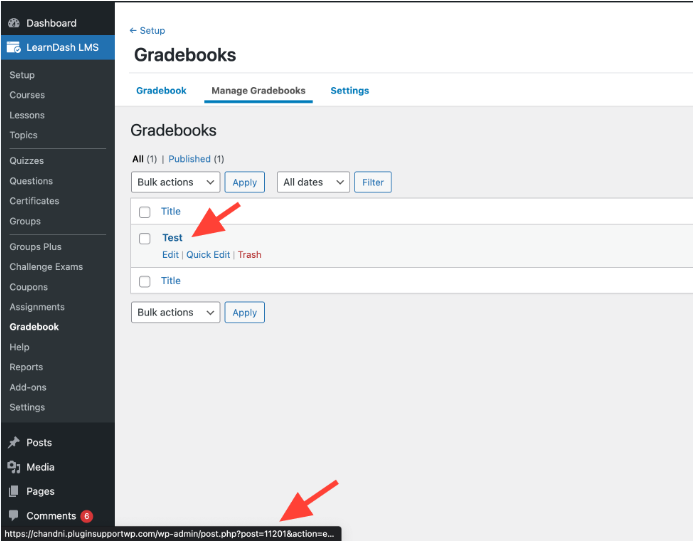
NOTE: Please note that the Gradebook ID is required for the shortcode to display the score.
[usermeta] #
The [usermeta] shortcode has a handful of options to display user information. Let’s take a look at each one.
[usermeta field="first_name"]– Displays a user’s first name[usermeta field="last_name"]– Displays a user’s last name[usermeta field="display_name"]– Displays a user’s full display name, which is often a combination of {first_name} and {last_name}.[usermeta field="user_login"]– Displays a user’s username[usermeta field="nickname"]– Displays a user’s nickname (might not be captured upon user signup)[usermeta field="user_email"]– Displays a user’s email address[usermeta field="user_url"]– Displays a user’s website address(likely not captured upon user signup)[usermeta field="description"]– Displays a user’s bio(likely not captured upon user signup)[usermeta field="id"]– Displays a user’s WordPress assigned unique user id (assigned chronologically by WordPress upon user registration)
The most common [usermeta] shortcodes you’ll use are [usermeta field="first_name"] and [usermeta field="last_name"], as almost all certificates should include the student’s name.
NOTE: Not all of these values are collected when a student registers for or purchases a course. Different registration methods collect different info. Check with your ecommerce or checkout solution to see which fields are collected upon signup. You can also check this yourself by going to Users > All Users, and clicking on a user to edit their profile.
[courseinfo] #
The [courseinfo] shortcode should only be used for certificates assigned to a course. Let’s quickly define a few terms:
- Aggregate refers to the sum of all quizzes assigned to the course
- Cumulative refers to the average of all quizzes assigned to the course
Here are all the possible values:
[courseinfo show="course_title"]– Displays the course title[courseinfo show="course_price"]– Displays the course price (only for one-time payment courses)[courseinfo show="course_price_type"]– Displays the Access Mode for the given course[courseinfo show="course_url"]– Displays the course URL[courseinfo show="course_points"]– Displays the total available points for the course[courseinfo show="user_course_points"]– Displays the amount of points the user earned for the course[courseinfo show="enrolled_on"]– Displays the course enrollment date (this does not apply to OPEN courses)[courseinfo show="completed_on"]– Displays the date the course was completed[courseinfo show="user_course_time"]– Displays the total time spent on a course[courseinfo show="cumulative_score"]– Displays the average score for all graded parts of the course[courseinfo show="cumulative_points"]– Displays the average points earned[courseinfo show="cumulative_total_points"]– Displays the average points earned[courseinfo show="cumulative_percentage"]– Displays the average percentage of all quizzes taken in the course[courseinfo show="cumulative_timespent"]– Displays the average time spent on each part of the course[courseinfo show="aggregate_score"]– Displays the final score received for the course[courseinfo show="aggregate_points"]– Displays the total points earned for the course[courseinfo show="aggregate_total_points"]– Displays the total points earned for the course[courseinfo show="aggregate_percentage"]– Displays the total percentage score for all quizzes taken as part of the course[courseinfo show="aggregate_timespent"]– Displays the total time spent on quizzes for the course as a whole
When using the completed_on parameter, you can also customize the date format. (See available date formats)
[courseinfo show="completed_on" format="F j, Y"][quizinfo] #
The [quizinfo] shortcode should only be used for certificates assigned to a quiz. They will not work if used for a certificate assigned to a course. Here’s a list of all available options to output quiz information on a quiz certificate:
[quizinfo show="score"]– Displays the score received for that quiz[quizinfo show="count"]– Displays the number of questions within the quiz[quizinfo show="pass"]– Displays the score required in order to pass the quiz[quizinfo show="timestamp"]– Displays the day/time when the quiz was completed[quizinfo show="points"]– Displays the points received by the user on the quiz[quizinfo show="total_points"]– Displays the total possible points that can be received for a given attempt[quizinfo show="percentage"]– Displays the percentage grade received by the user on the quiz[quizinfo show="quiz_title"]– Displays the name of the quiz[quizinfo show="course_title"]– Displays the name of the course that the quiz is associated with[quizinfo show="timespent"]– Displays the time spent taking the quiz
Again, you can customize the date format when using the timestamp option.
[quizinfo show="timestamp" format="F j, Y"][groupinfo] #
The [groupinfo] shortcode should only be used for certificates assigned to a group. They will not work if used for a certificate assigned to a course or a quiz. Here’s a list of all available options to output quiz information on a group certificate:
[groupinfo show="group_title"]– Displays the group’s title[groupinfo show="group_url"]– Displays the group’s URL[groupinfo show="group_price_type"]– Displays the group’s Access Mode[groupinfo show="group_price"]– Displays the group’s price[groupinfo show="group_users_count"]– Displays the number of group enrollees[groupinfo show="group_courses_count"]– Displays the number of courses in the group[groupinfo show="user_group_status"]– Displays the group progress status of the user[groupinfo show="enrolled_on"]– Displays the date the user enrolled into the group[groupinfo show="completed_on"]– Displays the date the user completed all courses assigned to the group[groupinfo show="percent_completed"]– Displays the score achieved in the group’s courses
Again, you can customize the date format when using the timestamp option.
[groupinfo show="timestamp" format="F j, Y"]