
The LearnDash Achievements add-on enhances student engagement and is designed to boost motivation through gamification. You can award points and/or badges according to the achievements each user attains on your site.
Using blocks, you can display each user’s individual and group achievements in a leaderboard anywhere on your site.
NOTE: You need to have LearnDash installed & activated before you can activate the Achievements plugin.
Installation #
Option 1: Add-ons Menu (requires an active LearnDash license) #
In your WordPress admin area, go to LearnDash LMS > Add-Ons and locate the LearnDash Achievements add-on. Click Now and once the installation is complete, click the Activate plugin button.
Option 2: Manual Upload #
Download the plugin file (remember that you must be logged in to download). In your WordPress admin dashboard go to Plugins > Add New and then Click to upload the Achievements plugin. You’ll need to browse for the plugin .zip that you downloaded previously. Once you find it (it may be in your computer’s Downloads folder), click Open, Install Now and finally, click the Activate Plugin button.
Walkthrough Video #
If you’re interested in learning more about gamification with LearnDash and WordPress, along with a walkthrough on how to create, manage, and set up your achievements add-on, watch this webinar replay.
What is a Trigger? #
A trigger is an action carried out by a user that would result in the achievement being awarded to the user. Some triggers are related to WordPress, while others are linked to actions connected with LearnDash.
Triggers are at the core of gamification on your LearnDash site. Use them to make learning more engaging and fun for your users.
The following triggers are available for linking with achievements:
WordPress #
- User registration (WordPress)
- User logs in (WordPress)
- User adds a post (WordPress)
- User adds a comment (WordPress)
- User visits a post (WordPress)
- User’s post gets visited (WordPress)
- User has logged in for X consecutive days (WordPress)
LearnDash #
- User enrolls into a group (LearnDash)
- User enrolls into a course (LearnDash)
- User completes a course (LearnDash)
- User completes a lesson (LearnDash)
- User completes a topic (LearnDash)
- User passes a quiz (LearnDash)
- User fails a quiz (LearnDash)
- User completes a quiz (LearnDash)
- Quiz score above % (LearnDash)
- User uploads assignment (LearnDash)
- User’s assignment is approved (LearnDash)
- User’s essay question has been graded (LearnDash)
- New – User has completed X courses or groups (LearnDash): Motivate users to continue their studies and be rewarded for their time and effort
- New – User has earned X badges or points (LearnDash): Boost engagement on your site and increase revenue by offering rewards. Users who are unsure about buying content may be persuaded when they see they can earn extra rewards. Since points can be used to buy content, you can promote them as a way for users to get discounts on future purchases.
- New – User has logged in for X consecutive days: Similar to many online games nowadays, rewarding users for returning back each day to increase engagement and create “fear of missing out” (FOMO).
How It Works #
To set up achievements and triggers on your site, you must first create and set them up from your WordPress dashboard.
- First, go to LearnDash LMS > Achievements.
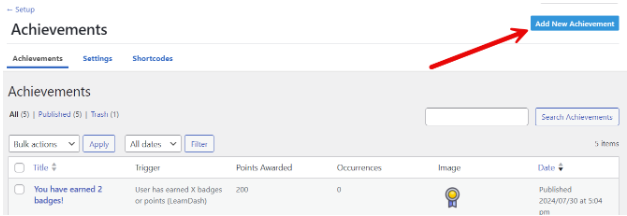
- Click on Add New Achievement.

- Add the title and message to go with the Achievement.


- Set the trigger from the available triggers.
- Next, fill out the relevant fields in the Details box. For example, for the trigger User has logged in for X consecutive days (WordPress), you must specify the number of days, the points awarded, and the number of occurrences the achievement is awarded.
IMPORTANT: After the achievement has been published, both the trigger and the associated course, quiz, lesson, topic, etc., can no longer be changed.


- The slug for the achievement will be automatically set, but this can be edited to a slug of your choice.
- On the right side of the achievements editing page, you can set an image that should be linked to the achievement. You can also upload your own image to serve as the badge for the achievement.
- Finally, click the Publish or Update button to save your changes.

General Settings for Achievements #
Go to LearnDash LMS > Achievements > Settings to save global configuration settings for all achievements. The Popup Settings will help you decide the look and feel of the popup that appears to notify users of their achievements.

- The Popup Time will define how many seconds the popup should be displayed. Set this to 0 to allow users to click the x button to close the popup.
- The Position will determine where on the screen the popup will be displayed. The current popup notice is set to display at the Top Right by default.
While the Top Right display is the default, there are other possible positions you can set:
- Bottom Right
- Bottom Left
- Top Left
- Center
- Top Center
- Bottom Center
- The Background Color for the popup is white by default, and you can customize this by using the color picker. You can also change the Text Color to match your sites color scheme. The default setting is dark gray.
- RTL toggle: If your site uses right-to-left (RTL) languages like Arabic, Hebrew, Persian, and Urdu, switch on the RTL toggle to ensure the text in the achievement message is rendered correctly.
Badge Settings #
The Badge Settings will let you set the Badge size and Tooltip text font size in pixels.

Using Achievement Points to Purchase Courses #
Achievement points are an excellent way to promote LearnDash courses on your site. The points earned can be used to offer discounts for course purchases and boost engagement.To allow the use of achievement points in a course purchase, go to the courses settings and click the Achievements tab and save the desired value:
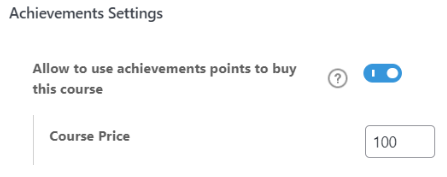
NOTE: Currently, only the Buy Now access mode is supported.
Settings for Administrators and Group Leaders #
Administrators can award extra points to users with the following steps:
- Navigate to Users > All Users while logged in as administrator.
- Select the user to whom you want to award extra points.
- Scroll down to the Achievements and User Points section.

- Enter the number of extra points you want to award.
- Click Update User.
Group Leaders can visit LearnDash LMS > Achievements and view a list of users alongside their achievement badges.

Badges on the Front end #
You can set up a pop-up on the front end of your site to show a students total points and the badges theyve earned whenever they reach a new achievement.
Below is an example of a badge achieved after completing three courses, based on the trigger User has completed X courses or groups (LearnDash)

Shortcodes and Blocks #
The Achievements add-on allows you to use shortcodes to display leaderboards and user achievements anywhere on your site. Go to LearnDash LMS > Achievements and click on the Shortcodes tab to view the available shortcodes.
Achievements Leaderboard #
The [ld_achievements_leaderboard] shortcode displays a list of users and their points based on their achievements. This shortcode can be used with a parameter named number, the total number of users to be displayed in an achievement leaderboard, for example:
[ld_achievements_leaderboard number=”20″]

To show the points for a user, add the show_points parameter to the shortcode: [ld_achievements_leaderboard show_points=1]
User Achievements #
The shortcode [ld_my_achievements] displays a list of a logged-in user’s achievements alongside the achievements icon and its title when you hover on the icon. You can also include the parameter show_points=1 to display the earned points. The shortcode [ld_my_achievements show_points=1] will display asshown in the illustration below:

You can use the equivalent Gutenberg blocks on the block editor as well:

The block settings for the LearnDash My Achievements block allows you to choose if you would like to display the title and achieved points:

On the front end, this block will display a students total points along with their earned badges as shown in the illustration below:
