
NOTE: This feature was introduced in LearnDash 3.0 and works with the LearnDash 3.0 template. This feature does not work with the Legacy template.
Course Sections offer a simple way to group lessons and topics into logical parts within a course. They don’t replace lessons or topics, but they help make long or complex courses easier to follow by breaking content into themed segments.
What Are Course Sections? #
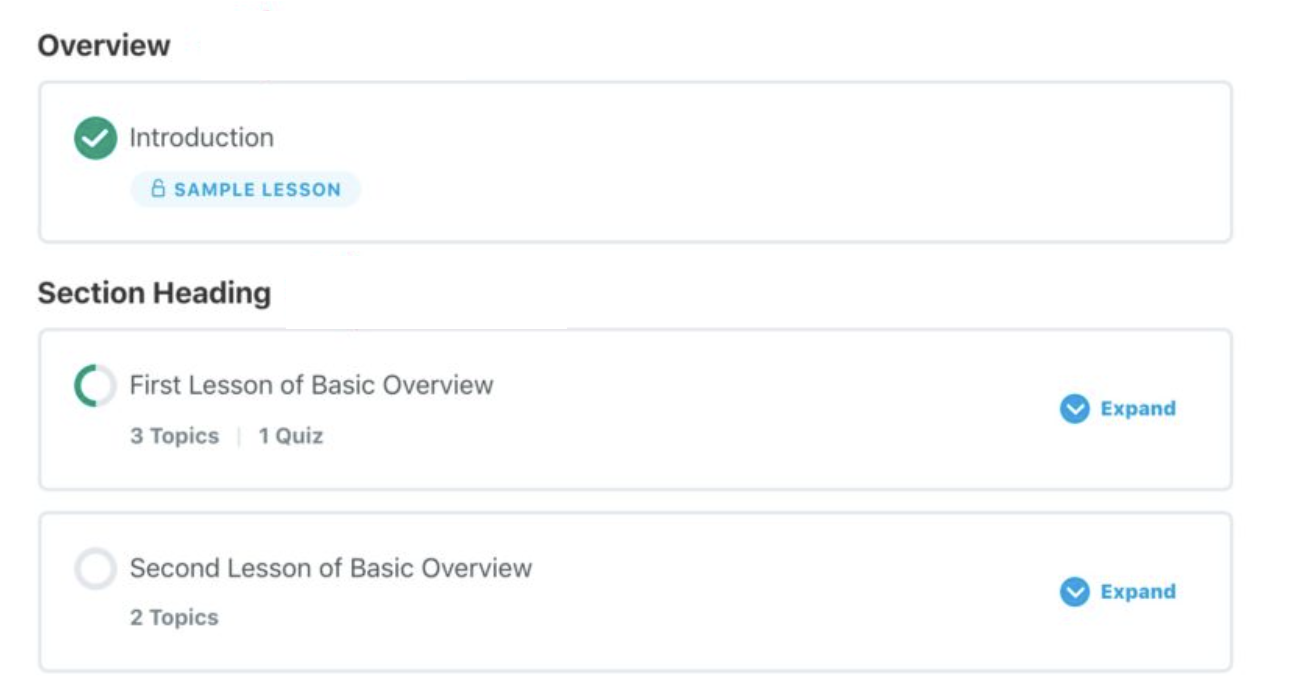
A Course Section is a heading used to divide course content into meaningful parts. These headings appear in the Course Builder and on the course page, making it easier for learners to navigate.
Here’s how course structure looks when sections are used:
Course > Section > Lesson > Topic
Key Details: #
- Text-only headings: Sections do not hold content directly. All learning content still lives inside lessons and topics.
- Top-level only: Sections can only be placed above lessons. They cannot be placed inside lessons or topics.
- Unlimited use: Add as many sections as needed to organize your course.
- Course-specific: Sections are created within a course and cannot be shared between courses.
- Only visible if used: Sections only display on the front end if they contain at least one lesson, topic, or quiz.
When to Use Course Sections #
Sections are most helpful for breaking a long course into smaller, more digestible parts. For example:
Scenario: A course includes 40 lessons, grouped into four major themes.
Solution: Use sections to introduce each theme and group the related lessons beneath them.
Example Layout:
- Theme 1: Introduction to Creative Writing(Section Heading)
- Lesson 1
- Lesson 2
- …
- Lesson 10
- Theme 2: Writing Fiction(Section Heading)
- Lesson 11
- …
This structure makes the course easier to navigate and helps learners understand how content is organized.
How to Use Sections #
How to Add a Course Section #
Course sections are created directly in the Course Builder.
To add a section: #
- Open the course in LearnDash LMS > Courses
- Click the Builder tab
- Click + New Section Heading
- Enter a name for your section
- Press Enter or click Add Section Heading
Tip: To place the new section in a specific location, click a lesson to highlight it before adding the section. The section will appear just below the selected lesson.

Moving Course Sections #
You can move sections just like lessons or topics in the Course Builder.
To drag and drop a section: #
- Hover over the six-dot icon to the left of the section heading
- Click and hold to drag it to a new position
- Release to drop it in place
To move a section one position at a time: #
- Use the up/down arrows to the left of the section heading

To move a section up or down one level at a time:
- Locate the up and down arrows immediately preceding the section heading
- Click either arrow to move the section in your desired direction
Removing a Course Section #
To delete a section:
- Hover over the section in the Course Builder
- Click the Remove link in red
Note: Removing a section does not delete any lessons or topics beneath it.