Skip to content
LearnDash Support
  • Products

      LearnDash LMS Plugin

      Powering intuitive online courses with advanced management and engagement features for WordPress.

      Learn More

      LearnDash LMS Plugin + Hosting

      StellarSites Learning is a fully managed hosting solution for WordPress.

      Learn More

      Premium LMS Add-ons
      Enhance your courses with extra features. Gather insights, reward learners, protect your course content, and more!

      Explore all Add-ons

      MemberDash
      The most flexible membership plugin for WordPress. Monetize your content and build a community.

      View MemberDash

  • Pricing
  • Add-ons & Integrations

      LEARNDASH ADD-ONS

      Instructor Role

      Empower Instructor to manage courses.

      Groups Management

      Organization management, delegation and more

      ProPanel

      Advanced analytics reporting.

      Gradebook

      Track progress and create report cards.

      Notes

      Enable notetaking and two-way communication.

      Rating, Reviews, & Feedback

      Build trust and gain valuable insights.

      FEATURED INTEGRATIONS

      The Events Calendar

      Connect with the most popular events solution.

      BuddyBoss

      Powerful tools for an enhance learning experience.

      WooCommerce

      The most popular shopping cart on WordPress.

      WeGlot

      Translate your LearnDash content.

      All Integrations

      BUNDLES

      Package and save
      Save when you buy multiple plugins in a bundle.

      See all bundles.

      MORE

      Release Notes

      Get Help

  • Resources
      LearnDash Academy Videos, webinars, and resources to help you launch a successful course.
      Blog Blog
articles with the latest news and tips to help you run high-quality courses.
      Knowledge Base A support network to help you make the most of your courses.
      Release Notes Stay up-to-date with the latest updates to LearnDash.
      Get Help

      Professional Services

      LMS Site Development Get hands-on assistance launching your course website.
      Website Maintenance WordPress management made easy.
      SEO Services SEO solutions that accelerate growth.

      Other Resources

      LearnDash Accessibility At LearnDash, we believe online learning should be accessible to everyone.
      Join the Dev Club
  • Demo
  • Sign In
Get LearnDash

Knowledge Bases: Support Home | LearnDash Core | LearnDash Add-ons | LearnDash Cloud | Resources | Mobile App

LearnDash Support
  • ← Return to LearnDash
  • Support
    • Support Home
    • All Knowledge Bases
    • LearnDash Core
    • Add-ons
    • Resources
    • Cloud
  • My Account
Popular searches: api duplicate couse email gp query loop [ld_course_resume]
View Categories
  • Home
  • All Knowledge Bases
  • How to Configure Access Rules in Your Learndash App

How to Configure Access Rules in Your Learndash App

Introduction #


Access Rules give you complete control over who sees what inside your Learndash App. Whether you want to lock premium content for paid members, hide posts from guests, or create unique app flows for different member types, Access Rules let you build a fully personalized experience.

This guide walks you through enabling Access Controls, defining member segments with Access Groups, and applying rules to restrict login access, app pages, blog posts, and LearnDash courses.

Prerequisite #

Make sure Access Controls is enabled:

  1. In your WordPress Dashboard, go to Learndash App > Components.
  2. Click Activate next to Access Controls.
  3. Once active, go to Learndash App > Access Controls to begin creating rules.
Screenshot of Access Controls settings menu

Configuring General App Access #

You can restrict access to the entire app based on login status or membership.

  1. Go to Learndash App > Access Controls > General.
  2. Enable Restrict Access to limit app entry.

Screenshot of checkbox to restrict who can login to the LearnDash App
  1. Under Access Groups, set the access rules:

Screenshot of group settings for restricting logins
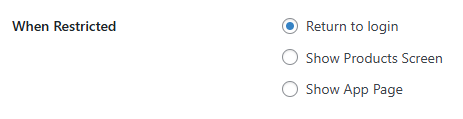
  1. Set a Restricted Action:
    • Return to Login
    • Show Product Screen
    • Show App Page
Screenshot of redirect options for restricted logins
  1. Click Save Changes.

Note: To hide the app from all logged-out users, enable Private App under Learndash App > Settings > General > Privacy.

Restricting App Pages, WordPress Pages & Blog Posts #

You can apply access rules to both native app screens and website content.

  1. In Learndash App > Access Controls, go to App Pages, Pages, or Posts.
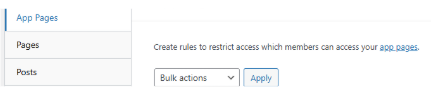
Screenshot of adding rules to the login restrictions
  1. Click + Add Rule next to the item you want to restrict.
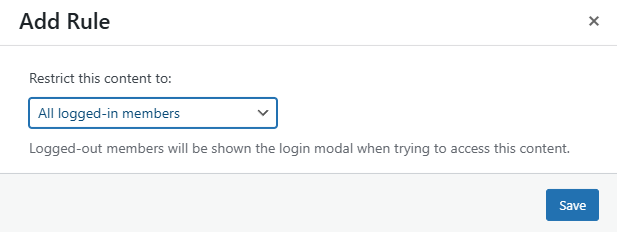
Screenshot of dropdown option for making a new rule
  1. Select your restriction:
    • All logged-in members
    • Specific Access Groups
  2. Choose a restriction message type:
    • Default Message
    • Custom Message (lets you add a title, custom copy, call-to-action, or content teaser)
  3. Click Save.

Note: Logged-out users will always see the login prompt before restricted content.

Restricting LearnDash Courses #

You can control access to individual courses, categories, tags, or apply a global default rule.

Restrict a Specific Course #

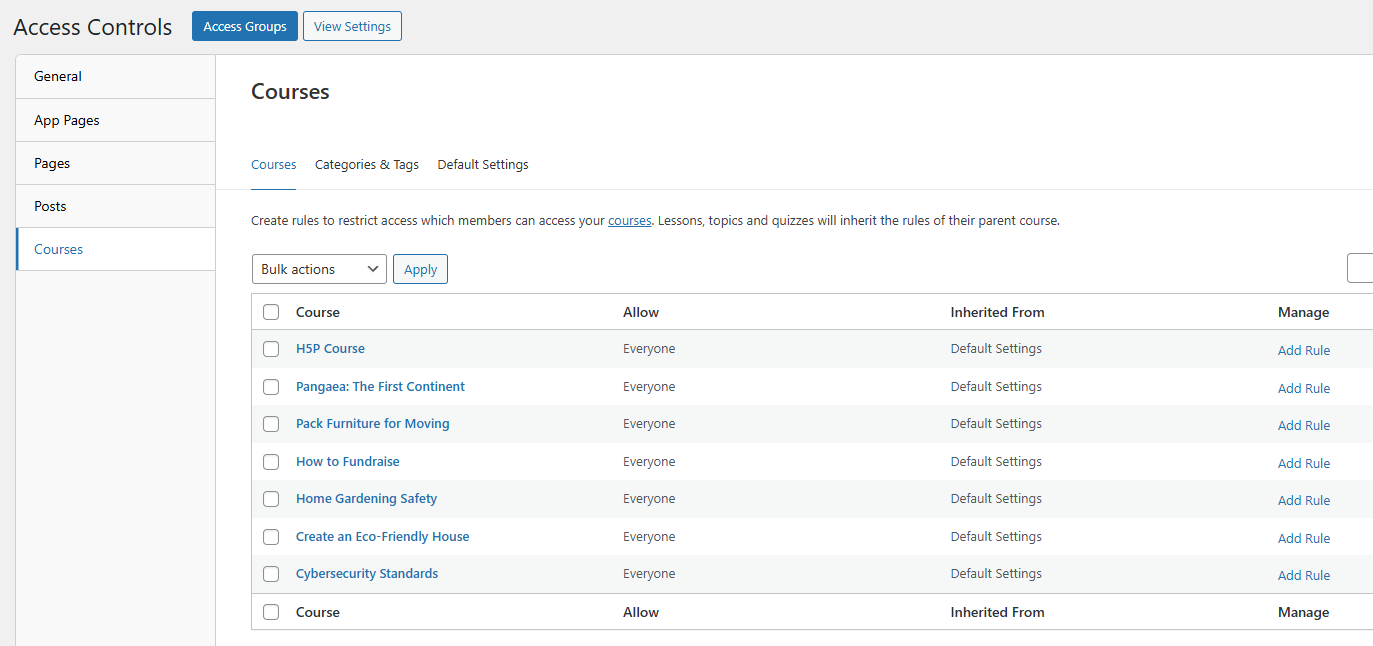
  1. Go to Learndash App > Access Controls > Courses > Courses.
  2. Click + Add Rule next to the course.
  3. Choose restriction type:
    • All logged-in members
    • Specific Access Groups
  4. Click Save.
Screenshot of restricting courses

Restrict by Categories or Tags #

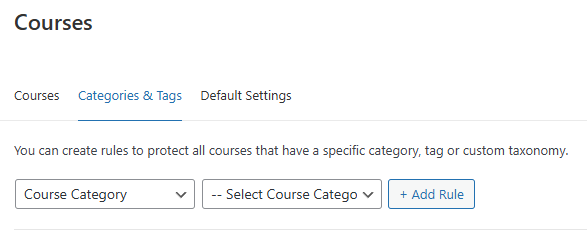
  1. Go to Learndash App > Access Controls > Courses > Categories & Tags.
  2. Add rules to categories, tags, or custom taxonomies.
  3. Set restriction and click Save.
Screenshot of Categories and tags options

Set a Global Rule for All Courses #

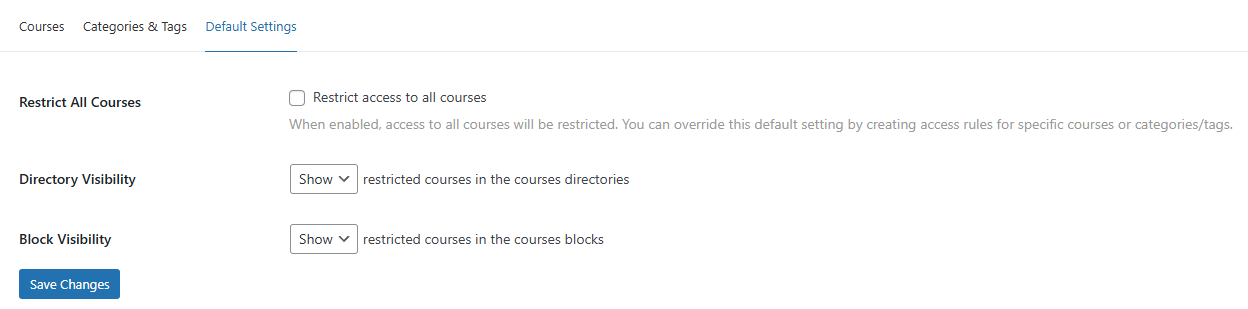
  1. Go to Courses > Default Settings.
  2. Check Restrict All Courses.
  3. Choose the restriction type and Access Group.
  4. Decide whether to Hide restricted courses or Show with limited access.
  5. Click Save Changes.
screenshot of App Access Rules default settings

Troubleshooting and FAQs #

Q: Restrict Access isn’t working for some users.
A: Go to Access Groups, hover over the group name, and click Recalculate Members to refresh the list.

Q: I don’t see my membership plugin in the dropdown.
A: Make sure the plugin (e.g., Restrict Content Pro, MemberPress) is installed and active.

Q: My custom message isn’t showing in the app.
A: Force-close and reopen the app to clear the cache and load the updated rules.

Q: Can I hide both a page and its menu item?
A: Yes. Add an Access Rule under Pages and also configure Menu Rules under Learndash App > Menus using the same group.

Q: Why do logged-out users see restricted pages?
A: Check if Restrict Access is enabled under General and verify your rule is targeting the correct audience.

Updated on April 22, 2026
Table of Contents
  • Introduction
  • Prerequisite
  • Configuring General App Access
  • Restricting App Pages, WordPress Pages & Blog Posts
  • Restricting LearnDash Courses
    • Restrict a Specific Course
    • Restrict by Categories or Tags
    • Set a Global Rule for All Courses
  • Troubleshooting and FAQs

Was this Doc Useful?

Thanks for your feedback!

Products

  • LearnDash LMS Plugin
  • MemberDash Plugin
  • LearnDash Cloud
  • ProPanel
  • Groups Management
  • Gradebook
  • Notes
  • Integrations

Support

  • Contact Us
  • Experts
  • Documentation
  • Facebook Community

Company

  • About LearnDash
  • Brand Assets
  • Careers
  • Affiliates
  • Privacy Policy
  • Terms and Conditions
  • Refund Policy

Our Partners

  • The Events Calendar
  • MemberDash
  • Kadence
  • GiveWP
  • Iconic
  • SolidWP

Stay Connected Subscribe to our newsletter
  • YouTube
  • X
  • Facebook
  • Instagram

Copyright 2026. All Rights Reserved.

A Liquid Web Brand
WordPress Hosting Services
© 2026 All Rights Reserved

StellarWP
liquidweb