Skip to content
LearnDash Support
  • Products

      LearnDash LMS Plugin

      Powering intuitive online courses with advanced management and engagement features for WordPress.

      Learn More

      LearnDash LMS Plugin + Hosting

      StellarSites Learning is a fully managed hosting solution for WordPress.

      Learn More

      Premium LMS Add-ons
      Enhance your courses with extra features. Gather insights, reward learners, protect your course content, and more!

      Explore all Add-ons

      MemberDash
      The most flexible membership plugin for WordPress. Monetize your content and build a community.

      View MemberDash

  • Pricing
  • Add-ons & Integrations

      LEARNDASH ADD-ONS

      Instructor Role

      Empower Instructor to manage courses.

      Groups Management

      Organization management, delegation and more

      ProPanel

      Advanced analytics reporting.

      Gradebook

      Track progress and create report cards.

      Notes

      Enable notetaking and two-way communication.

      Rating, Reviews, & Feedback

      Build trust and gain valuable insights.

      FEATURED INTEGRATIONS

      The Events Calendar

      Connect with the most popular events solution.

      BuddyBoss

      Powerful tools for an enhance learning experience.

      WooCommerce

      The most popular shopping cart on WordPress.

      WeGlot

      Translate your LearnDash content.

      All Integrations

      BUNDLES

      Package and save
      Save when you buy multiple plugins in a bundle.

      See all bundles.

      MORE

      Release Notes

      Get Help

  • Resources
      LearnDash Academy Videos, webinars, and resources to help you launch a successful course.
      Blog Blog
articles with the latest news and tips to help you run high-quality courses.
      Knowledge Base A support network to help you make the most of your courses.
      Release Notes Stay up-to-date with the latest updates to LearnDash.
      Get Help

      Professional Services

      LMS Site Development Get hands-on assistance launching your course website.
      Website Maintenance WordPress management made easy.
      SEO Services SEO solutions that accelerate growth.

      Other Resources

      LearnDash Accessibility At LearnDash, we believe online learning should be accessible to everyone.
      Join the Dev Club
  • Demo
  • Sign In
Get LearnDash

Knowledge Bases: Support Home | LearnDash Core | LearnDash Add-ons | LearnDash Cloud | Resources | Mobile App

LearnDash Support
  • ← Return to LearnDash
  • Support
    • Support Home
    • All Knowledge Bases
    • LearnDash Core
    • Add-ons
    • Resources
    • Cloud
  • My Account
Popular searches: api duplicate couse email gp query loop [ld_course_resume]
View Categories
  • Home
  • All Knowledge Bases
  • Going Live
  • How to Update Your Android Learndash App

How to Update Your Android Learndash App

Introduction #

Keeping your Android app up to date ensures users always have access to the latest features, bug fixes, and updated In-App Purchase pricing.

This guide walks you through generating a new Android Release build, downloading the AAB, submitting it to Google Play Console, and addressing review feedback.

Creating a New Android Release App Build #

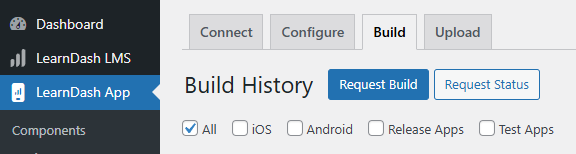
  1. In your WordPress admin, go to Learndash App > Build.
  2. Click Request Build.
Screenshot of Build History Menu
  1. Select Android as the Platform and Release App as the Build Type.
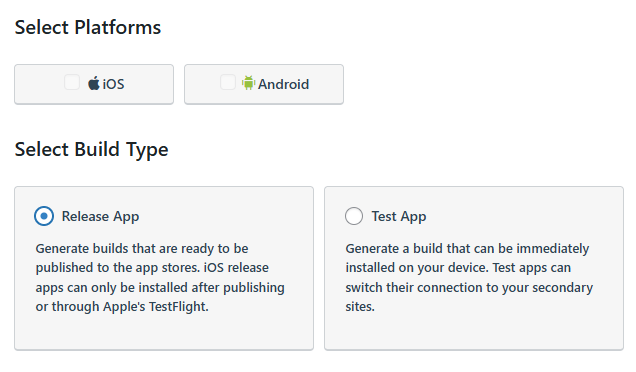
Screenshot of "Select Platform"
  1. Click Next Step, then Send Build Request.
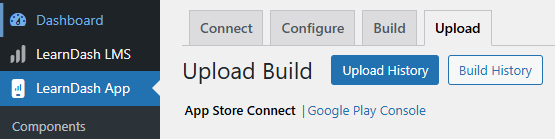
  2. When complete, go to Build History.
Screenshot of App Store Connect
  1. When complete, go to Build History.
  2. Click Download AAB File on your new release build.

Note: Since August 2021, Google requires AAB files for new submissions. Previously published apps may still use APKs.

Save the downloaded AAB file in a secure location. You will need it for your Play Store update.

Downloading Your Latest Build from WordPress #

  1. In WordPress admin, go to Learndash App > Upload > Google Play Console.
  2. Select the Release build you want to update and choose the file format.
  3. Click Download Build.

Note: Use AAB for new submissions; legacy APKs remain supported if previously published.

Resubmitting to Google Play Console #

  1. Log into Google Play Console.
  2. In All apps, select your app.
  3. Under Release > Production, click Create new release (or Edit release if one exists).
  4. In App bundles and APKs, click Upload and choose your downloaded AAB.
  5. Enter a Release name and Release notes (as per your Publishing Checklist).
  6. Click Save, then Review release.
  7. Resolve any errors (required) or warnings (recommended).
  8. Click Start rollout to Production to submit for review.

Responding to Google Rejections #

  • Metadata Issues – Revise your store listing, privacy policy, or content rating in Play Console, then resubmit the same release.
  • App Issues – Fix code-level issues, rebuild your AAB, and repeat the Create new release process.

You’ll receive detailed emails from Google and can track your submission status in Play Console.

After Approval by Google #

  • If Managed publishing is OFF – Your app will go live immediately in approved regions.
  • If Managed publishing is ON – You must manually approve the release before it appears in the store.

Troubleshooting & FAQs #

Q: Why can’t I upload my AAB?
A: Ensure the versionCode in your build is higher than any previously uploaded version.

Q: My release remains in “Draft” status.
A: You must click Start rollout to Production; saving alone does not publish the update.

Q: What if I only changed metadata?
A: Metadata-only changes still require a new release to be created and rolled out.

Q: Can I revert to a previous version if something breaks?
A: Yes. Create a new release using the last working AAB and roll it out to Production.

Q: Do I need to repeat the checklist for every update?
A: No. Once your app is published, future submissions under the same App ID inherit prior configuration. Just upload the new AAB and roll out.

Q: My AAB upload fails with a “signing” error.
A: Ensure the AAB is signed with the same key as previous versions. Changing keys will block updates.

Updated on September 27, 2025
Table of Contents
  • Introduction
  • Creating a New Android Release App Build
  • Downloading Your Latest Build from WordPress
  • Resubmitting to Google Play Console
  • Responding to Google Rejections
  • After Approval by Google
  • Troubleshooting & FAQs

Was this Doc Useful?

Thanks for your feedback!

Products

  • LearnDash LMS Plugin
  • MemberDash Plugin
  • LearnDash Cloud
  • ProPanel
  • Groups Management
  • Gradebook
  • Notes
  • Integrations

Support

  • Contact Us
  • Experts
  • Documentation
  • Facebook Community

Company

  • About LearnDash
  • Brand Assets
  • Careers
  • Affiliates
  • Privacy Policy
  • Terms and Conditions
  • Refund Policy

Our Partners

  • The Events Calendar
  • MemberDash
  • Kadence
  • GiveWP
  • Iconic
  • SolidWP

Stay Connected Subscribe to our newsletter
  • YouTube
  • X
  • Facebook
  • Instagram

Copyright 2026. All Rights Reserved.

A Liquid Web Brand
WordPress Hosting Services
© 2026 All Rights Reserved

StellarWP
liquidweb