
Introduction #
If you haven’t published your Android app yet, we recommend using the Publishing Service. The Publishing Team will review your app for compliance with Google Play Store guidelines and publish it live under your developer account.
This guide explains the manual publishing process that includes the downloading your AAB file, submitting it to a Production release, inviting testers via Testing Tracks, and handling possible rejection, all from within WordPress.
Before You Begin #
- Complete all steps in the Google Play Store Publishing Checklist.
- Finalize your app branding, settings, and required screenshots for your white-label app.
Downloading the AAB File #
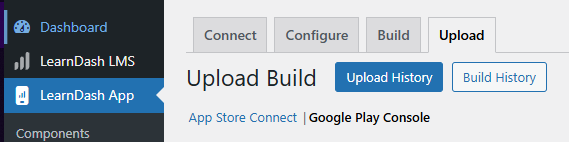
- In WordPress Admin, go to LearnDash App > Upload > Google Play Console.
- Select the build you want to publish.
- Choose the file format and click Download Build.
Note: Since August 2021, Google requires AAB files for new submissions. If your app was previously published, you can still use APKs for updates.
Submitting Your App to Google for Review #
- Log in to your Google Play Console.
- From the Home page, click your app to open details.
- In the sidebar under Test and release, select Production.
- Click Create new release (or Edit release for updates).
- In App bundles, click Upload and select your AAB file.
- Enter a Release name and Release notes (refer to your checklist).
- Click Save as draft or Next to proceed.
Reviewing and Submitting Your Release #
- Review the release and resolve any errors (warnings are optional to address).
- Click Start rollout to Production.
- Your app’s status changes to In review.
- Track publishing status under your app title and Application ID.
Handling Google Rejections #
If your release is rejected, you’ll receive an email explaining why:
- Metadata Issues → Update store listing, privacy policy, or content rating in Play Console, then resubmit.
- App Issues → Fix code-level issues, build a new version, and submit again.
After Approval #
- Approved apps go live immediately in your configured regions.
- If Managed Publishing is enabled, approve the release from the Managed Publishing page before it goes live.
Publishing New Versions #
To update your app:
- Generate a new build.
- Upload it to your Production track.
- Submit for review.
Troubleshooting and FAQs #
Q: Where do I find my AAB file?
A: Go to LearnDash App > Upload > Google Play Console and click Download Build for your selected build.
Q: Why do I see a “higher version code required” error?
A: Increase the version code in your plugin so it’s higher than any build in Play Console.
Q: My release is stuck in “Draft.”
A: You must click Start rollout to Production. Drafts don’t publish automatically.
Q: Testers can’t join my Testing Track.
A: Confirm you copied the correct URL from Testing > Closed testing > How testers join your test, and that their emails are listed under both Testers and License testing.
Q: Do I need to redo the checklist for minor updates?
A: No. Once published, future builds under the same App ID reuse your configuration. Just upload the new AAB and roll out.