
Introduction #
The Blog Posts App Block lets you display selected WordPress blog content on custom app pages using a swipeable carousel. This feature helps boost engagement by promoting your latest articles and providing direct access to your blog within the LearnDash App.
In this guide, you’ll learn how to add the Blog Posts block, customize its design, filter or select content, and preview the layout inside your app.
Opening the App Page Editor #
- From your WordPress Dashboard, go to LearnDash App > App Pages.
- Choose the App Page you want to modify and click Edit.
Adding the Blog Posts Block #
- Click the + icon to insert a new block.
- Scroll to the LearnDash App Blocks section.
- Select the Blog Posts block.
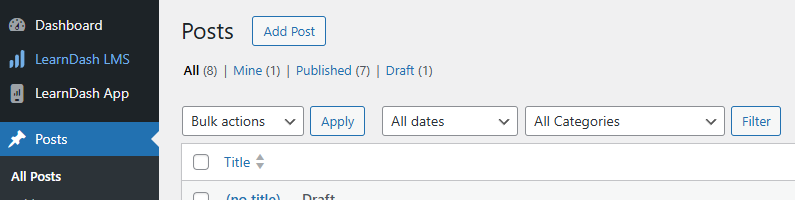
- Drag and place it in your preferred position on the page.
Customizing the Block Title and Background #
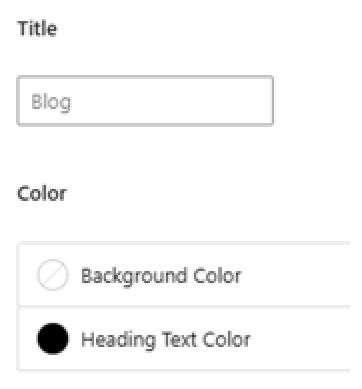
- In the block’s Settings panel, update the Title (e.g., rename “Blog” to “Latest News” or another label).
- Choose a Background Color or leave it Transparent to match your app’s theme.
Filtering Posts by Criteria #
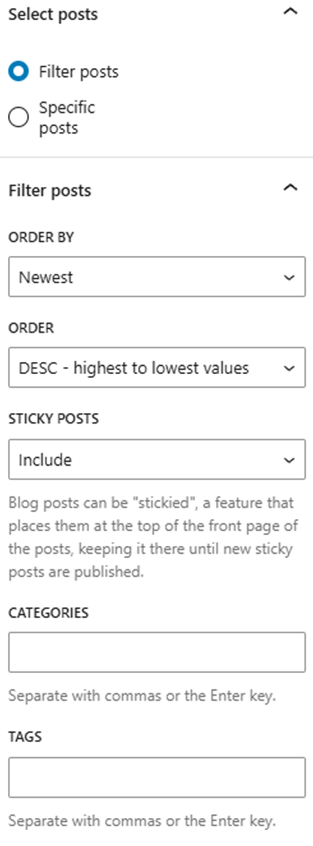
- Under Content Source, select Filter Posts.
- Refine the post selection using the following options:
- Order By:: Newest or Alphabetical
- Order: Ascending or Descending
- Sticky Posts: Include, Exclude, or Only Sticky
- Categories/Tags: Enter comma-separated slugs
- Authors: Enter comma-separated usernames
- Date: Filter posts by date
- Items to Show: Set the number of visible carousel items
Displaying Specific Posts #
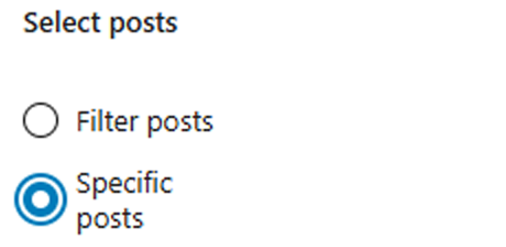
- Switch Content Source to Specific Posts.
- Click Select Posts and manually choose which blog entries to display.
Saving and Previewing #
- Click Update to save your App Page.
- On your mobile device, force-close and reopen the LearnDash App.
- Navigate to the page containing the block and review how the Blog Posts carousel appears.
- Tap See All to open the full blog archive in-app.
Troubleshooting and FAQs #
Q: The Blog Posts block isn’t appearing in the app.
A: Make sure you clicked Update on the App Page. Then force-close and relaunch the app to load changes.
Q: I’m unable to select posts manually.
A: Ensure Content Source is set to Specific Posts, then use the post selector to pick entries.