
Introduction #
Create a seamless, branded navigation experience for your mobile community by customizing the Tab Bar and More Screen in the LearnDash App. From selecting the right icons and colors to organizing key screens, you can tailor navigation directly from your WordPress Dashboard.
This guide walks you through how to set up, customize, and preview your app’s primary and secondary navigation menus.
Open the Menus Settings #
- In WordPress, go to LearnDash App > Menus.

- Ensure the Tab Bar Menu tab is active.
- Switch to the More Screen Menu tab to manage secondary navigation.
Clear and Rebuild Navigation #
- In the Tab Bar Menu, click Remove on each item to start fresh.
- Switch to More Screen Menu and remove all items as well.
Add Core App Screens #
- Under the App Core, Select Settings, and click Add to Menu(required).
- Click Save Menu.
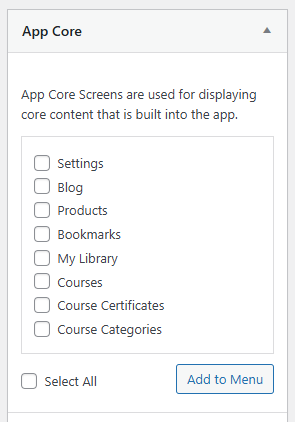
Note: You can also add Courses and other menu items.
Create Menu Sections #
- In More Screen Menu, click Add Section.
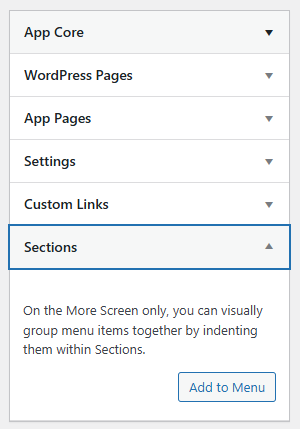
- Name it App Settings.
- Drag Settings under this section.
- Click Save Menu.
Customize Menu Icons and Text #
- In the Tab Bar Menu, click the dropdown arrow beside each item.
- Click Select Item Icon.
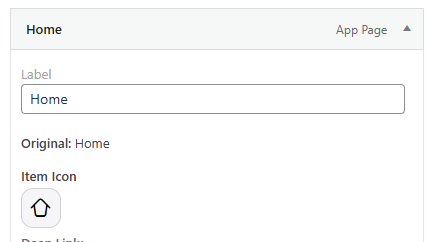
- Choose from the Icon Pack.
- Set an Icon Color to match your brand.
- Click Select Icon, then Save Menu.
- Repeat for More Screen Menu items.
Adjust Default Icon Colors #
- Go to LearnDash App > Branding > Colors > Tab Bar & More Screen.
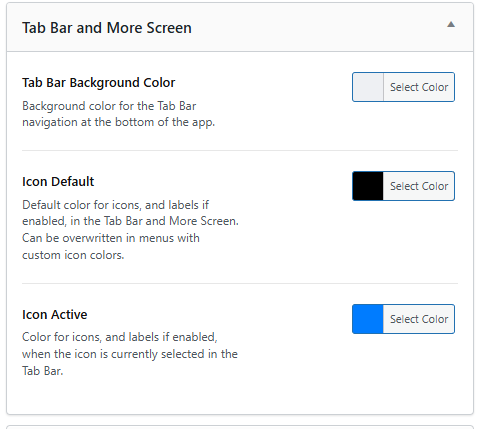
- Set your Icon Default Color and Icon Active Color (for selected Tab Bar items).
- Click Save Changes.
Preview in the App #
- Force-close the LearnDash App on your device.
- Reopen to see your updated Tab Bar and More Screen layout, icons, and colors.
Troubleshooting and FAQs #
Q: Why aren’t my menu changes showing in the app?
A: Force-close and reopen the LearnDash App to apply the updated menu settings.
Q: Why can’t I add more than four items to the Tab Bar?
A: The Tab Bar supports only four items plus the More menu. Extra items should be added to the More Screen.
Q: Why aren’t the legacy icons showing in the icon picker?
A: Clear your browser cache, update the LearnDash App plugin, and reload the Menus > Tab Bar screen.