
Introduction #
Your Learndash App reflects your public website. This allows visitors to view content without logging in. Enabling private app access ensures that only authenticated users can view or interact with any content. This setting improves security, boosts registrations, and keeps your community restricted to approved members.
This guide walks you through enabling the Private app access feature of your Learndash App.
Enabling Private App Access #
- In your WordPress Dashboard, go to Learndash App > Configure > General.
- Scroll to the Privacy section.
- Check the box: Restrict App Access to Only Logged In Members.

- In your WordPress Dashboard, go to Learndash App > Configure > General.
- Scroll to the Privacy section.
- Check the box: Restrict App Access to Only Logged In Members.
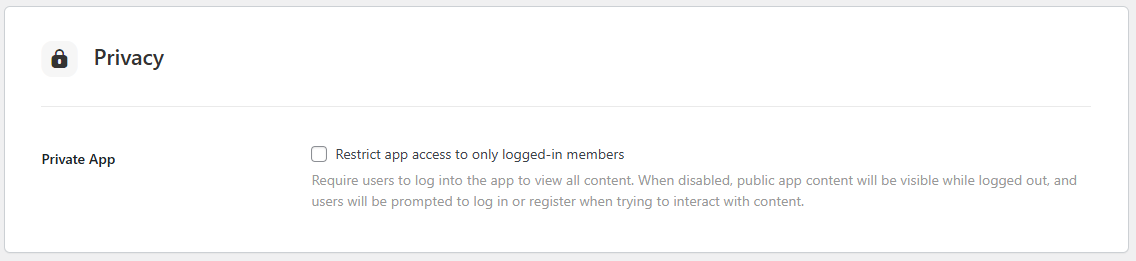
- Click Save Changes.
Verifying Private App Behavior #
- Force-quit the Learndash App on your mobile device.
- Relaunch the app. You should land on the Login screen, and the “Continue Without Logging In” option should be hidden.
- Try to tap any content.
- You should be prompted to log in before accessing any content.
Troubleshooting and FAQs #
Q: I still see public content without logging in.
A: Clear all caching plugins on your site and save the settings again.
Q: “Continue Without Logging In” is still visible.
A: Double-check that you clicked Save Changes after enabling the privacy setting.
Q: Can I restrict only certain content instead of the entire app?
A: No. This setting applies app-wide. For selective content restriction, adjust visibility settings at the group, course, or page level.