
Introduction #
Automate release management and revenue reporting in your Learndash App using the Google Play Developer API. This guide walks you through linking your Google Cloud project, creating a service account, generating a JSON key, and connecting it in the Learndash App plugin.
Linking Your Google Cloud Project #
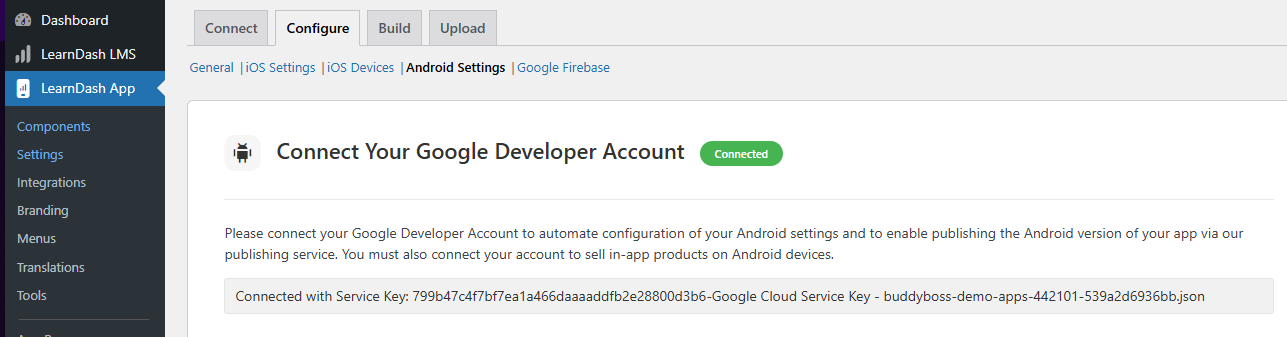
- In your WordPress admin, navigate to Learndash App > Configure > Android Settings > Connect Your Google Developer Account.
- When prompted, choose Link Existing Project or Create New Project in the Google Cloud dialog.
- Confirm your project is linked before proceeding.
Creating a Service Account #
- From the API Access page in WordPress, click Create New Service Account.
- In the Google Cloud popup, click the Google Cloud Platform link.
- Select your project and click Create Service Account.
- Enter a Name and click Create.
- Under Select a role, choose Basic > Owner, then click Continue.
- Click Done to finalize the service account setup.
Generating Your JSON Key #
- Back on the API Access page, find your new service account and click ⋮ > Manage Keys.
- Click Add Key > Create New Key.
- Select JSON for the key type and click Create.
- Note: The key file will download immediately and only once. Store it securely.
- Click Done to close the key management dialog.
Granting Play Console Permissions #
- Still under API Access, click Grant Access next to your service account.
- Enable the following permissions:
- View App Information & Download Financial Reports
- View Financial Data, Orders, & Cancellations
- Manage Orders & Subscriptions
- Create/Edit/Delete Draft Apps
- Release to Production
- Exclude Devices & Use Play App Signing
- Release Apps to Testing Tracks
- Manage Testing Tracks & Tester Lists
- Manage Store Presence
- View App Information & Download Financial Reports
- Click Invite User and then Send Invite.
Connecting Your Key in Learndash App #
- In WordPress, go to Learndash App > Configure > Settings > Developer Account API Access.
- Under Connect Your Service Account, click Upload JSON Key and select the downloaded file.
- Click Save Changes.
- Confirm the connection status shows Connected.
Troubleshooting and FAQs #
Q: I don’t see my project when linking.
A: Ensure you have Owner access in the Google Cloud project and you’re signed into the correct Google account.
Q: The “Create Service Account” button is greyed out.
A: Verify billing is enabled on your Google Cloud project. Service accounts require an active billing setup.
Q: My JSON key download failed or was lost.
A: You cannot re-download a key. Go to Manage Keys and Create New Key to generate a replacement.
Q: API calls return “Unauthorized” after connecting.
A: Confirm the service account accepted the Play Console invite email and that the JSON file is correctly uploaded.
Q: Certain API actions still fail despite “Owner” role.
A: Double-check Play Console permissions under Account Permissions, resend the invite, and ensure the service account email matches exactly.