
Introduction #
Maintenance Mode allows you to temporarily pause your mobile app while performing updates, resolving issues, or making backend changes. During this period, your users will see a branded “we’ll be back soon” screen that uses your app’s logo and colors to maintain a professional appearance.
This guide shows you how to activate Maintenance Mode and customize the experience your members see during downtime.
Enabling Maintenance Mode #
To activate Maintenance Mode:
- Go to LearnDash App > Configure > General.

- Scroll to the Maintenance Mode section.
- Check Enable Maintenance Mode
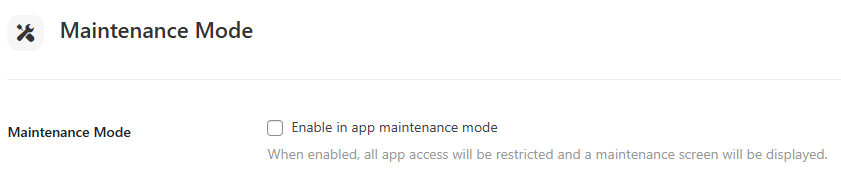
- Click Save Changes.
When enabled, users won’t be able to interact with the app until it’s disabled.
What Users Will See #
Once Maintenance Mode is active, members who open the app will see:
- App Logo – Pulled from Learndash App > Branding > Logon Screen > Logo
- Background Color – Matches your setting under Learndash App > Branding > General Background Color
- Default Message – “Maintenance Mode is enabled. Please try again later.”
The message can be customized via Learndash App > Translations by searching for “Maintenance Mode.”
To resume full access, simply uncheck Enable Maintenance Mode and save your changes. The app will return to normal after users reopen it.
Troubleshooting and FAQs #
Q: How do I change the maintenance message?
A: Go to Learndash App > Translations, search for “Maintenance Mode”, and update the text to your preferred message.
Q: Some users still see the regular app content.
A: Ask users to force-close and reopen the app. This clears cached data and loads the maintenance screen properly.